This document and any attached materials are the sole property of Beyond Now Innovation Team. This document and any attached materials are not to be disseminated, distributed, or otherwise conveyed throughout your organization to employees without a need for this information or to any third parties without the express written permission of Beyond Now Innovation Team.
This document gives an overview of the capabilities of Infonova Experience Framework, how to set up and configure a new shopfront and how to connect it with an Infonova tenant and offer catalogue.
Big Picture and Architecture
To use the shopfront effectively it is important to understand the big picture. The entities and their associations determine the usage of Infonova Experience Framework.
Infonova Experience Framework is an addon to the Infonova ecosystem and is associated with a single Infonova tenant. The Experience Framework allows tenants to present and showcase their products, let customers order or request products that are configured in the Infonova offer catalogue as well as let customers self-manage their product inventory, orders and invoices on CSC pages.
Experience Framework entities are configured in Strapi, a headless Content Management System (CMS) and are loaded and presented on the Infonova Shopfront UI, an Angular application that utilizes both the Strapi CMS and the Infonova APIs.
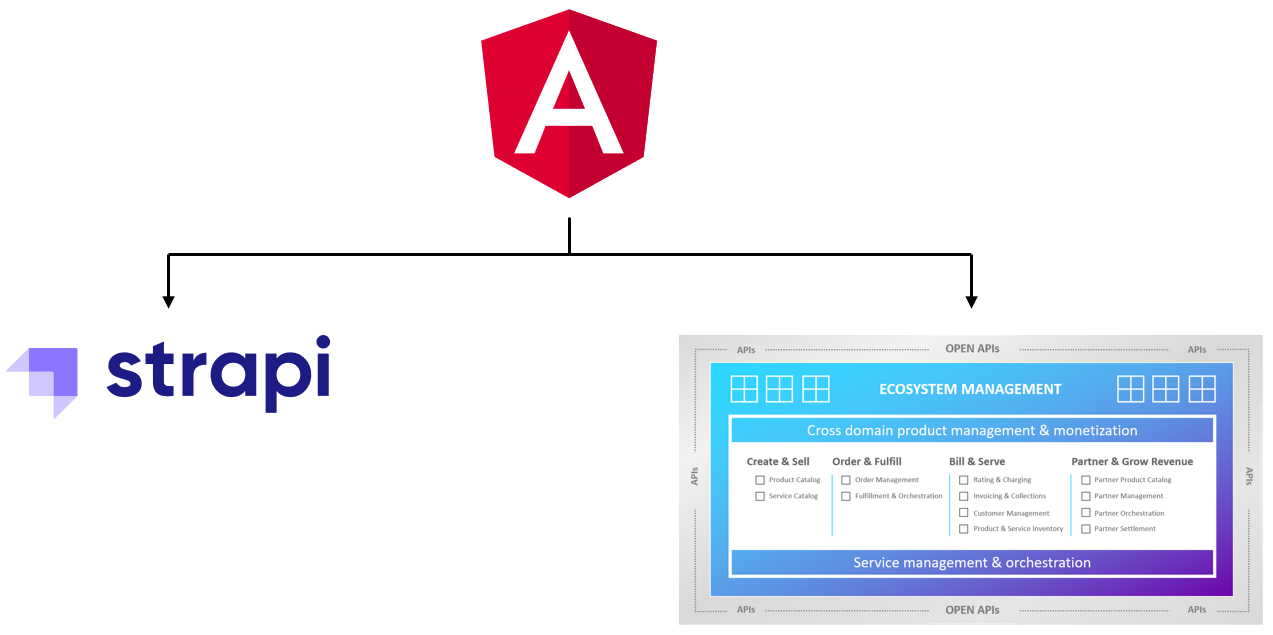
Hosting Experience Framework on a path segment
When hosting the Experience Framework frontend service on a path segment (e.g. https://eu01.sb.infonova.com/shopfront-frontend/sb-beyond/SHOPFRONT) a few tasks have to be executed in order to make all capabilities of Experience Framework work.
Static Resources References
Static content - like images or other files - can be loaded in the frontend by providing them with a relative URI starting with static.
In order to make this work on an environment hosted on a path segment, the leading / has to be removed.
An example for this is static/assets/images/logo.png.
The Experience Framework frontend will then attempt to load the resource from the configured helm deployment parameter frontend.assetsurl.
SSO Check
The default location of the Keycloak SSO check frame is window.location.origin + '/assets/silent-check-sso.html'.
This will not work when hosting the Experience Framework on a path segment.
To change the location of the SSO check frame, provide the following Storefront parameter:
| Key | Value |
|---|---|
SSO_CHECK_PATH |
Location to the silent-check-sso frame, e.g. https://eu01.sb.infonova.com/shopfront-frontend/sb-beyond/assets/silent-check-sso.html |
Authenticating Infonova Operators in Experience Framework Backend APIs
Infonova Keycloak bearer tokens can be used to authenticate for non-public Experience Framework backend APIs like "CRUD" operations on entities like Storefront, Page, Product. In order to enable authenticating Infonova operators a few steps have to be taken.
OAuth Environment Variables
The following environment variables entity has to be created to configure the Experience Framework backend’s token verification.
Name |
|
The following variables have to be configured on the entity:
| Key | Value |
|---|---|
jwks_uri |
The URI of the JWKS (JSON web key set) certificate, e.g. https://eu01.sb.infonova.com/auth/realms/BEYOND/protocol/openid-connect/certs |
infonova_tenant |
The name of the Infonova tenant that the user of the token needs to have access mapped |
workgroup |
The name of the Infonova authorization workgroup that the user of the token needs to have access mapped |
Backend API Permissions
The Experience Framework backend’s API role Authenticated will be used to authorize the Infonova operator for each API endpoint.
The endpoints can be added and removed in the Experience Framework backend admin portal settings on the Roles page of the Users & Permission Plugin section.
Required Infonova Tenant Settings
In order to enable the Infonova Shopfront for the Infonova tenant, a list of settings have to be made.
CSM User Permissions
Since the access token of the logged-in user is being used to make requests to the Infonova APIs, the role of the user has to have a list of required permissions.
{
  "permissions": [
   "/addresses/v1/addresses:POST",
    "/authorization/v1/customerAccountUserRoles:GET",
    "/billing/v1/customerBills:GET",
		"/billing/v1/billingAccounts/{id}:PATCH",
		"/billing/v1/billingAccounts/{id}:GET",
    "/bl-ticketing/category/Support/create",
    "/bl-ticketing/category/Support/update",
    "/bl-ticketing/category/Support/view",
    "/channel/override",
    "/chargeCatalog/v1/onceOnlyCharges/{name}:GET",
    "/chargeCatalog/v1/recurringCharges/{name}:GET",
    "/chargeInventory/v1/recurringCharges:GET",
    "/configuration/v1/languages:GET",
    "/configuration/v1/lookupOptions/areas/{area}/options:GET",
    "/configuration/v1/templateDefinitions/templates/{name}:GET",
    "/contentrepository/documents/types/OFFER_IMAGE/view",
    "/contentrepository/documents/types/TICKET/add",
    "/contentrepository/documents/types/TICKET/delete",
    "/contentrepository/documents/types/TICKET/edit",
    "/contentrepository/documents/types/TICKET/view",
    "/customers/v1/customerAccounts/{id}:GET",
    "/customers/v1/customerAccounts/{id}:PATCH",
    "/customers/v2/customerAccounts/{customerAccount}/relationships/{relatedCustomerAccount}:GET",
    "/customers/v2/customerAccounts:GET",
    "/customers/v2/customerAccounts/{id}:GET",
    "/customers/v2/customerAccounts/{id}:PATCH",
    "/GLOBAL/Admin/executeOnBehalfOfAnotherUser",
    "/parties/v1/individuals/{id}:GET",
    "/parties/v1/individuals/{id}:PATCH",
    "/parties/v1/organizations/{id}:GET",
    "/parties/v1/organizations/{id}:PATCH",
    "/productCatalog/v1/productOfferingCharacteristicGroups/{name}:GET",
    "/productCatalog/v1/productOfferings/{name}:GET",
    "/productCatalog/v1/productOfferings/{productOffering}/summary:GET",
    "/productCatalog/v1/productOfferingTariffModels/{name}:GET",
    "/productCatalog/v1/resourceSpecificationGroupTariffModels/{name}:GET",
    "/productInventory/v1/products:GET",
    "/productInventory/v1/products/{product}:GET",
    "/productOrdering/v1/carts/{cart}/catalog/productOfferings:GET",
    "/productOrdering/v1/carts/{cart}/catalog/productOfferings:POST",
    "/productOrdering/v1/carts/{cart}/catalog/products:GET",
    "/productOrdering/v1/carts/{cart}/catalog/products/{product}:GET",
    "/productOrdering/v1/carts/{cart}/catalog/products/{product}:POST",
    "/productOrdering/v1/carts/{cart}/configuration/charges:GET",
    "/productOrdering/v1/carts/{cart}/configuration/productCharacteristics/{productCharacteristic}:GET",
    "/productOrdering/v1/carts/{cart}/configuration/products:GET",
    "/productOrdering/v1/carts/{cart}/configuration/products/{product}/characteristicGroups:GET",
    "/productOrdering/v1/carts/{cart}/configuration/products/{product}/charges:GET",
    "/productOrdering/v1/carts/{cart}/configuration/products/{product}:GET",
    "/productOrdering/v1/carts/{cart}/configuration/products/{product}/productGroups:GET",
    "/productOrdering/v1/carts/{cart}/configuration/products/{product}/resourceGroups:GET",
    "/productOrdering/v1/carts/{cart}/configuration/products/{product}/resourceGroups/{resourceGroup}:GET",
    "/productOrdering/v1/carts/{cart}/configuration/products/{product}/resourceGroups/{resourceGroup}/resources:GET",
    "/productOrdering/v1/carts/{cart}/configuration/products/{product}/services:GET",
    "/productOrdering/v1/carts/{cart}/configuration/resourceCharacteristics/{resourceCharacteristic}:GET",
    "/productOrdering/v1/carts/{cart}/configuration/resources:GET",
    "/productOrdering/v1/carts/{cart}/configuration/resources/{resource}/capabilities/{capability}/providers:GET",
    "/productOrdering/v1/carts/{cart}/configuration/resources/{resource}/characteristics:GET",
    "/productOrdering/v1/carts/{cart}/configuration/resources/{resource}/charges:GET",
    "/productOrdering/v1/carts/{cart}/configuration/resources/{resource}:GET",
    "/productOrdering/v1/carts/{cart}/configuration/serviceCharacteristics:GET",
    "/productOrdering/v1/carts/{cart}/configuration/serviceCharacteristics/{serviceCharacteristic}:GET",
    "/productOrdering/v1/carts/{cart}/configuration/services:GET",
    "/productOrdering/v1/carts/{cart}/configuration/services/{service}/capabilities/{capability}/providers:GET",
    "/productOrdering/v1/carts/{cart}/configuration/services/{service}/characteristics:GET",
    "/productOrdering/v1/carts/{cart}/configuration/services/{service}/charges:GET",
    "/productOrdering/v1/carts/{cart}/configuration/services/{service}:GET",
    "/productOrdering/v1/carts/{cart}/configuration/services/{service}/services:GET",
    "/productOrdering/v1/carts/{cart}/customerOrderSummary:GET",
    "/productOrdering/v1/carts/{cart}:DELETE",
    "/productOrdering/v1/carts/{cart}:GET",
    "/productOrdering/v1/carts/{cart}/operations/products/{product}/characteristics:GET",
    "/productOrdering/v1/carts/{cart}/operations/products/{product}/characteristics:POST",
    "/productOrdering/v1/carts/{cart}/operations/products/{product}/characteristics/{productCharacteristic}:DELETE",
    "/productOrdering/v1/carts/{cart}/operations/products/{product}/characteristics/{productCharacteristic}:GET",
    "/productOrdering/v1/carts/{cart}/operations/products/{product}/characteristics/{productCharacteristic}:PATCH",
    "/productOrdering/v1/carts/{cart}/operations/products/{product}:DELETE",
    "/productOrdering/v1/carts/{cart}/operations/products/{product}:PATCH",
    "/productOrdering/v1/carts/{cart}/operations/resources:GET",
    "/productOrdering/v1/carts/{cart}/operations/resources:POST",
    "/productOrdering/v1/carts/{cart}/operations/resources/{resource}/characteristics/{resourceCharacteristic}:GET",
    "/productOrdering/v1/carts/{cart}/operations/resources/{resource}/characteristics/{resourceCharacteristic}:PATCH",
    "/productOrdering/v1/carts/{cart}/operations/resources/{resource}:DELETE",
    "/productOrdering/v1/carts/{cart}/operations/resources/{resource}:GET",
    "/productOrdering/v1/carts/{cart}/operations/resources/{resource}:PATCH",
    "/productOrdering/v1/carts/{cart}/operations/services:GET",
    "/productOrdering/v1/carts/{cart}/operations/services:POST",
    "/productOrdering/v1/carts/{cart}/operations/services/{service}/characteristics:GET",
    "/productOrdering/v1/carts/{cart}/operations/services/{service}/characteristics:POST",
    "/productOrdering/v1/carts/{cart}/operations/services/{service}/characteristics/{serviceCharacteristic}:DELETE",
    "/productOrdering/v1/carts/{cart}/operations/services/{service}/characteristics/{serviceCharacteristic}:GET",
    "/productOrdering/v1/carts/{cart}/operations/services/{service}/characteristics/{serviceCharacteristic}:PATCH",
    "/productOrdering/v1/carts/{cart}/operations/services/{service}:DELETE",
    "/productOrdering/v1/carts/{cart}/operations/services/{service}:GET",
    "/productOrdering/v1/carts/{cart}/operations/services/{service}:PATCH",
    "/productOrdering/v1/carts/{cart}:PATCH",
    "/productOrdering/v1/carts/{cart}/save:POST",
    "/productOrdering/v1/carts/{cart}/submit:POST",
    "/productOrdering/v1/carts/{cart}/summary:GET",
    "/productOrdering/v1/carts/{cart}/validate:POST",
    "/productOrdering/v1/carts:GET",
    "/productOrdering/v1/carts:POST",
    "/productOrdering/v1/productOrders:GET",
    "/productOrdering/v1/productOrders/{id}:GET",
    "/resourceInventory/v1/resources:GET",
    "/resourceInventory/v1/resources/{resource}:GET",
    "/serviceInventory/v1/services:GET",
    "/serviceInventory/v1/services/{service}/changes:GET",
    "/serviceInventory/v1/services/{service}:GET",
    "/templateRendering/v1/templates/{name}:POST",
    "/troubleTicketing/v1/categories:GET",
    "/troubleTicketing/v1/tickets:GET",
    "/troubleTicketing/v1/tickets/{id}:GET",
    "/troubleTicketing/v1/tickets:POST",
    "/troubleTicketing/v1/tickets/{ticket}/attachments:GET",
    "/troubleTicketing/v1/tickets/{ticket}/attachments/{id}:DELETE",
    "/troubleTicketing/v1/tickets/{ticket}/attachments/{id}/download:GET",
    "/troubleTicketing/v1/tickets/{ticket}/attachments:POST",
    "/troubleTicketing/v1/tickets/{ticket}/notes:GET",
    "/troubleTicketing/v1/tickets/{ticket}/notes:POST",
    "/UI/CRM/addWholesaleProduct",
    "/UI/CRM/editSubAccountAccess",
    "/UI/CRM/manageCsmUsers",
    "/UI/CRM/viewAccountHierarchy",
    "/UI/CRM/viewSubAccountHierarchy",
    "/usages/v1/usages:GET",
    "/users/customerAccountUsers/accessEntireAccountHierarchy",
    "/users/customerAccountUsers/accessSubAccountHierarchy",
    "/users/v1/customerAccountUsers/{name}/associatedCustomerAccounts:GET",
    "/users/v1/customerAccountUsers/{name}/associatedCustomerAccounts:PUT",
    "/users/v1/customerAccountUsers/{name}:GET",
    "/users/v1/customerAccountUsers/{name}:PATCH",
    "/users/v1/customerAccountUsers:POST"
  ]
}
Offer Configuration Parameter Set
To enable the Infonova Shopfront UI app to manage the user’s shopping cart, a list of parameters have to be defined on every offer configuration of the tenant’s Infonova product catalogue that he wants to make orderable vie Infonvoa Shopfront UI.
<parameterSet strictValidation="false">
    <parameterDefinitions>
        <parameterDefinition isRequired="false" isSearchable="true" isTransient="false" isHidden="false">
            <key>$productEntityKey</key>
            <displayName>The key of the product entity in Strapi</displayName>
            <changeSource>ORDER</changeSource>
        </parameterDefinition>
        <parameterDefinition isRequired="false" isSearchable="true" isTransient="false" isHidden="false">
            <key>$productEntityVariationKey</key>
            <displayName>The key of the product entity variation in Strapi</displayName>
            <changeSource>ORDER</changeSource>
        </parameterDefinition>
        <parameterDefinition isRequired="false" isSearchable="true" isTransient="false" isHidden="false">
            <key>$tags</key>
            <displayName>Comma-delimited list of tags that the user can set via shopfront UI</displayName>
            <changeSource>PRODUCT</changeSource>
        </parameterDefinition>
    </parameterDefinitions>
</parameterSet>
Core Entities
The core entities are the building-blocks of Infonova Experience Framework. They are defined and configured in the Strapi backend and loaded and used by the shopfront UI application.
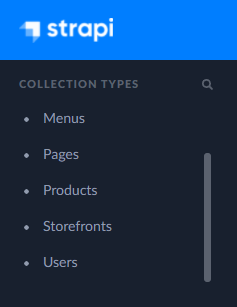
Storefront
The storefront entity is the main entity of a shopfront. It defines the path at which the storefront can be accessed via the shopfront UI.
| Property | Details |
|---|---|
Name |
Defines the identifier of the storefront and is used to request storefront data from the backend.
It also defines the path of the storefront: |
Channel |
The key of the Infonova channel that is being used by product-ordering and the shopping cart. |
Channel_id |
The id of the Infonova channel that is being used by product-ordering and the shopping cart. |
Keycloak_realm |
The Keycloak realm that should be used for authenticating customer account users. |
Keycloak_client_id |
The id of the Keycloak client that should be used for authenticating customer account users. |
Keycloak_url |
The URL of the Keycloak client that should be used for authenticating customer account users. e.g. |
Infonova_api_url |
The base-URL of the Infonova API e.g. |
Infonova_tenant |
The name of the Infonova tenant. |
Logotip |
The logo of the shopfront that will be displayed in the header of the shopfront UI. |
Footer |
The HTML of the footer that will be displayed as the footer of the shopfront UI. |
Store_front_display_name |
The display-name of the storefront. It will be used in the browser’s page titles. |
Cart_summary_icon |
The image that will be displayed on the top-right of the header of the shopfront UI. It is used to toggle the shopping cart popup. |
Global_scripts |
The script files that are added to the DOM scripts and loaded when navigating to the shopfront UI. Mainly used to load web components (custom elements). |
Node_red_base_url |
The base-URL of the Node-red backend. Will be added to the single-page application (SPA) environment and can be accessed in web components. |
Browser_window_title |
Can be used to override the page title of the browser tab. |
Fav_ico |
The image that is being used as the favicon of the shopfront UI. |
Menu |
A reference of a Menu entity. It is being used to define the top header menu of the shopfront UI. |
Pages |
A list of page entities that are associated with this storefront. |
Css_file |
A reference of the CSS entity that is being used by this storefront. |
Landing_page |
A reference to a page entity that is being used as the landing page of this storefront. It will be displayed when navigating to the shopfront UI’s home-page. |
Cart_summary_page |
A reference to a page entity that is being used to display the current content of the customer’s shopping cart. It will be displayed when clicking on the Show Cart button in the shopping cart popup. |
Customer_registration_page |
A reference to a page entity that is being used to register a new customer account. It will be displayed when clicking the Request new user link in the user pop-up. |
Default_cart_config_page |
A reference to a page entity that is being used as the default page when configuring a product in the shopping cart. |
Sub_menus |
A list of Menu entities that can be used by the shopfront UI and web components. |
Customer_account_user_creation_page |
A reference to a page entity that is being used to create a new customer account user. It will be displayed when logged in and clicking on the Customer Account User link in the user pop-up. |
Csc_config |
A reference to a CSC config entity that is being used to define the storefront’s CSC experience. |
Default_layout |
A reference to a Layout entity that is being used to define the storefront’s default layout. |
CSS
The CSS entity is used to attach a CSS stylesheet to a Storefront. It will be automatically loaded when navigating the a storefront’s shopfront UI.
| Property | Details |
|---|---|
Name |
The identifier of the CSS entity. Only used in the Strapi Administrator UI to identify the CSS entity in the CSS entities list. |
Css |
The CSS stylesheet file.
Must be a file ending with |
Css_for_storefront |
A reference of the Storefront that should use this CSS entity. |
Menu
The menu entity is used to configure the Storefront's header navigation menu, as well as the CSC side-bar. It can also be used to define custom menus in web components.
| Property | Details |
|---|---|
Name |
The identifier of the menu entity. Only used in the Strapi Administrator UI to identify the menu entity in the menu entities list. |
Items |
The menu items. See Menu Items for more information. |
Menu_for_storefront |
A reference of the Storefront that is using this menu as the header navigation menu. |
Sub_menu_for_storefront |
A reference of the Storefront that is using this menu as a menu other than the header navigation menu. |
Type |
The type of the menu.
Can be any value other than the reserved value |
Menu Items
The items of a menu can be used to navigate the shopfront UI.
| Property | Details |
|---|---|
Name |
The display name of the menu item. It is being used to render the entry in the shopfront UI. |
Page |
A reference of a Page that the user will be navigated to when clicking the menu item. |
Icon |
The image that is associated with the menu item. |
Dropdowns |
The list of menu items that will be displayed in a pop-up when clicking the menu item. If this property is populated, then the menu item will not be a single link, but instead open a pop-up that contains all the page links of the menu items in the Dropdowns property. |
CSC Config
The CSC Config entity defines the user experience of the customer self-care components of Infonova Shopfront.Using the Infonova Shopfront CSC components and CSC Config is an optional feature.
| Property | Details |
|---|---|
Name |
The identifier of the CSC Config. Only used in the Strapi Administrator UI to identify the CSC Config in the CSC Config list. |
Page |
A reference of a Page that the user will be navigated to when clicking the menu item. |
Default_Product_Image |
The image that is being used as a default image for a Product that does not have an associated image. |
Dashboard |
The configuration of the pre-integrated CSC dashboard component. See CSC Dashboard Configuration for more details. |
Storefront |
A reference of the Storefront which uses the CSC Config. |
Default_Product_Details |
A reference of a Page that is being used as the default product details for a Product that does not have product details configured.The product details page is rendered on the product item of the CSC products component. |
Default_CSC_Product_Actions |
The default product actions that will be used for a Product that does not have Product Actions configured. |
CSC Dashboard Configuration
The Dashboard Configuration of the CSC Config configured the pre-integrated dashboard component of Infonova Shopfront and consists of rows and their widgets. Widgets and rows can be moved in the Strapi Administrator UI. There is a list of out-of-the-box widgets, but custom widgets can also be used.
| Property | Details |
|---|---|
Name |
The identifier of the widget. |
Size |
Defines how much space the widget takes up. |
Custom_widget_tooltip |
The text that will be displayed when hovering over the ?-icon next to the widget. |
Predefined_widget |
If the widget is an out-of-the-box pre-integrated widget it can be chosen from the provided list. |
Custom_widget |
If the widget is a custom widget a Page can be referenced to be rendered. |
Parameters |
A list of Key-Value pairs that can be passed to the widgets.
Pre-defined widgets can utilize a parameter entry with the key |
Product
A product entity is used to link an offer of the tenant’s Infonova product catalogue with the Storefront. It defines how the product can be configured in the shopping cart and how it can be used in the customer self-care components.
| Property | Details |
|---|---|
Key |
The identifier of the product. The value must be unique in Strapi. |
Displayname |
The display name of the product in the Strapi Administrator UI. |
Published |
Toggle between ON and OFF. Determines if the product should be displayed in some components of Infonova Shopfront. |
Target |
The target of the product in the Infonova tenant’s product catalogue. See Product Target for more information. |
Cart_config_url |
The URL of the cart configuration JSON file. See Shopping Cart Configuration for more information. |
Media |
A list of files associated with the product.
The key value |
Tags |
A list of tags that can be used in custom web components. |
Variation |
A list of variations of the product. See Product Variation for more information. |
Terms_and_Conditions |
A list of files that will be presented to the user when checking out the shopping cart. |
CSC_Product_Actions |
A list of CSC product actions. Can be used to define product change-journeys. See Product Actions for more information. |
Modify_cart_config_url |
Replaced by Product Actions and will be removed in the future. Currently, not used. |
Custom_config_page |
If the product should be configured with a custom component, a Page can be referenced here that will be used when the user adds the product to the cart. |
Storefront |
A reference of the Storefront that this product is being associated with. |
Product Target
The Product target is used to link the product entity to a product configuration in the Infonova tenant’s product catalogue. When ordering the product entity in the Infonova Shopfront UI, the product target will be added to the user’s shopping cart. The value of the product target is a JSON object with the following schema:
{
  "type": "product",
  "product": {
    "key": "OFFER_KEY"
  }
}
The value of the product.key property references a product offering in the Infonova tenant’s product catalogue.
Product Parameters
Product parameters is an array of key- value pairs attached to the product entity. There are reserved keys that are used to define specific behaviour:
| Key | Details |
|---|---|
csc_recommendations_description |
Defines the description of the product when displayed in the CSC dashboard recommendation widget. |
csc_recommendations_page_slug |
Defines the slug of a Page that is being redirected to when clicking on the product in the CSC dashboard recommendation widget. |
csc_product_details |
Defines the slug of a Page that is being rendered in the details section of the product in the CSC customer products list. |
Product Actions
Product actions manage how the user can interact with the products in his product inventory in the CSC customer products page. If there are no actions defined on a product, then the default actions will be used which are defined in the CSC Config of the storefront. Product actions can be used to create a product change-journey that allows the user to make a change-request for his products.
| Property | Details |
|---|---|
Displayname |
The name of the action that will be displayed in the drop-down actions-button of the product in the CSC customer products list. |
Page |
A reference of a Page that the user will be redirected to when selecting the product action. |
Parameters |
A list of key-value pairs associated with the product action.
The key |
Product Variation
Product variations can be used when the same product offering of the tenant’s product catalogue can be used for several products. An example would be connection products with different bandwidths that use the same Infonova product offering, but only use a different service characteristic value.
| Property | Details |
|---|---|
Key |
The identifier of the product variation. Must be unique in Strapi and is used when adding the product variation to the user’s shopping cart and when loading product details in CSC components. |
Cart_operation |
Used to apply operations on the product variation after it has been added to the shopping cart. Can be used to set the value of a service-characteristic or patch the entire cart. See Product Variation Cart Operation for more details. |
Display_Name |
Used to override the Product entity’s display name when the variation is used, instead. |
CSC_Product_Actions |
If there are [_product_actions_] defined on the variation, then the variation’s product actions will be used instead of the product actions of the Product. |
Parameters |
Can be used to override Product Parameters of a Product when the variation is used, instead. |
Product Variation Cart Operation
A cart operation is applied to the product, after adding the product variation to the user’s shopping cart. It is used to set values of service-characteristics or patch the entire shopping cart.
SPEED of the service SERVICE-KEY to 100_100{
"operations": [
{
"type": "patch",
"value": "100_100",
"target": {
"type": "service-characteristic",
"serviceCharacteristic": {
"serviceKey": "SERVICE-KEY",
"serviceProvider": "SERVICE_TENANT",
"serviceCharacteristicKey": "SERVICE-KEY:SPEED"
}
}
}
]
}Page
A page entity represents a single web page that can be served and rendered on a tenant’s Infonova Shopfront UI.
Pages are associated with a single Storefront and are identified by their page slug.
The location of a page on the storefront is https://path-to-storefront/storefrontName/page/pageSlug.
An exception is the landing page of a storefront, which is referenced in the storefront’s Landing_page property and served with https://path-to-storefront/storefrontName.
The contents of a page is an array of components which are either Pre-integrated Components or plain HTML components. All components of the page will be rendered when the page is loaded in the browser.
| Property | Details |
|---|---|
Name |
The name of the page that will be displayed in the Strapi Administrator UI. |
Content |
The array of components that will be rendered on the page. Can be Pre-integrated Components or a Generic component that consists of plain HTML and optional scripts and CSS style sheets. |
Page_for_storefront |
A reference of the Storefront this page will be associated with. |
Landing_for_storefront |
If a Storefront is referenced, then the page will act as the storefront’s landing page. There can only be one landing page for each storefront. |
Cart_summary_for_storefront |
If a Storefront is referenced, then the page will act as the storefront’s cart summary page. There can only be one cart summary page for each storefront. |
Slug |
A short identifier of the page that will be used to navigate to the page in the Infonova Shopfront UI. If left empty, a value will be automatically generated. Page slugs must be unique in each Storefront. There are two reserved slug values that are used in the Infonova Shopfront UI: account is used to define the storefront’s CSC dashboard UI page and ordersummary is used for the storefront’s CSC orders page. See Pre-integrated Components for more details. |
Browser_window_title |
Used to override the browser’s tab title when navigating to the page. |
Authentication_required |
If true, this page can only be navigated to when a user is logged in on the Infonova Shopfront UI. Can be used to create CSC pages. |
Show_customer_menu |
If true, the storefront’s customer menu sidebar will be displayed, when navigating to the page. See Menu for more details. |
Layout |
A reference to a Layout entity that is being used to override the storefront’s default layout. |
Layout
A layout entity is used to change the design layout of the Infonova Shopfront UI and to define various parts like the header, footer or menues. It can be used as a default layout for the whole Storefront or as a layout for specific pages. For example, one layout is used as the storefront’s default layout and another layout is used for the customer-self-care pages.
| Property | Details |
|---|---|
Name |
The name of the layout that will be displayed in the Strapi Administrator UI. |
Layout |
The layout in the form of HTML code. See below for more information. |
<shopfront-layout-container>
    <shopfront-sidebar-container>
        <shopfront-sidebar-menu>
            <shopfront-sidebar-menu-account>
                <div class="mat-subheader" slot="start">Account</div>
                <shopfront-sidebar-menu-divider slot="end"></shopfront-sidebar-menu-divider>
                <div class="mat-subheader" slot="end">My area</div>
                <shopfront-sidebar-menu-items menu="customer menu" slot="end"></shopfront-sidebar-menu-items>
                <shopfront-sidebar-menu-divider slot="end"></shopfront-sidebar-menu-divider>
            </shopfront-sidebar-menu-account>
            <div class="mat-subheader">Language</div>
            <shopfront-sidebar-menu-language-switcher></shopfront-sidebar-menu-language-switcher>
            <shopfront-sidebar-menu-divider></shopfront-sidebar-menu-divider>
            <shopfront-sidebar-menu-items menu="main menu"></shopfront-sidebar-menu-items>
            <shopfront-sidebar-menu-divider></shopfront-sidebar-menu-divider>
            <shopfront-sidebar-menu-divider></shopfront-sidebar-menu-divider>
            <shopfront-sidebar-menu-login></shopfront-sidebar-menu-login>
        </shopfront-sidebar-menu>
    </shopfront-sidebar-container>
    <shopfront-content-container>
        <header>
            <div class="announcement">
                <div class="shell">
                    <p>
                        <img src="/static/welcome-ico.png" alt="">
                        <span>Welcome</span>
                        Welcome to the shopfront! This is a top page content information!
                    </p>
                </div>
            </div>
            <div class="lang-chooser">
                <div class="container nav-wrapper">
                    <shopfront-language-switcher class-name="right">
                        <shopfront-login slot="additional-fields-start"></shopfront-login>
                    </shopfront-language-switcher>
                </div>
            </div>
            <shopfront-toolbar class-name="container">
                <shopfront-sidebar-trigger class="d-lg-none">
                    <shopfront-icon class-name="infonova-sidebar__toggle-icon" icon-name="menu"></shopfront-icon>
                </shopfront-sidebar-trigger>
                <shopfront-logo></shopfront-logo>
                <shopfront-menu class-name="d-sm-none" menu-name="main menu"></shopfront-menu>
                <shopfront-shopping-cart slot="right-side"></shopfront-shopping-cart>
            </shopfront-toolbar>
        </header>
        <shopfront-page-content></shopfront-page-content>
        <shopfront-footer></shopfront-footer>
    </shopfront-content-container>
</shopfront-layout-container>
Layout Components (selection)
Shopfront Page Content
The Shopfront page content web component can be used to render the current Page.
Selector |
shopfront-page-content |
Example |
|
Shopfront Menu
The Shopfront menu component can be used to render a Menu.
menu-name |
Used to define which Menu entity should be rendered. |
class-name |
Used to add classes to the component’s element in the DOM. |
Selector |
shopfront-menu |
Example |
|
Shopfront Sidebar Menu
The Shopfront sidebar menu component can be used to render a Menu in the Shopfront’s sidebar. A child element Shopfront Sidebar Menu Items has to be added to define which items should be included in the menu.
Selector |
shopfront-menu |
Example |
|
Shopfront Sidebar Menu Items
The Shopfront sidebar menu items component is used in a Shopfront Sidebar Menu to define which items should be rendered in the Menu.
menu |
Used to define which Menu entity should be rendered. |
Selector |
shopfront-sidebar-menu-items |
Example |
|
Language Templates
Shopfront supports internationalization via language templates, which allow chaning pre-defined labels of existing shopfront components as well as adding templates for custom components. Language templates can be defined for all available languages of a shopfront. The languages need to be configured and available in order to be visible in the selector on the language templates config page.
Each language template has a unique component name with a flat key/value map. The language-templates have one key/value map per available language.
The key/value map translates the texts on the html page of a component. If no entries are set, the pre-defined fallback values of the component pages are displayed.
With the 'translate' pipe, the language-templates can be loaded. It loads the language-templates whith the currently selected language from shopfront. If not available it will fallback to the pre-defined value.
...
<a class="button login-existing" (click)="login()">{{ 'Log in existing user' | translate : 'login' : 'existing_user' | async }}</a>
...{{ '<fallback-text>' | translate: '<language-template-name>':'<language-template-map-key> | async }}
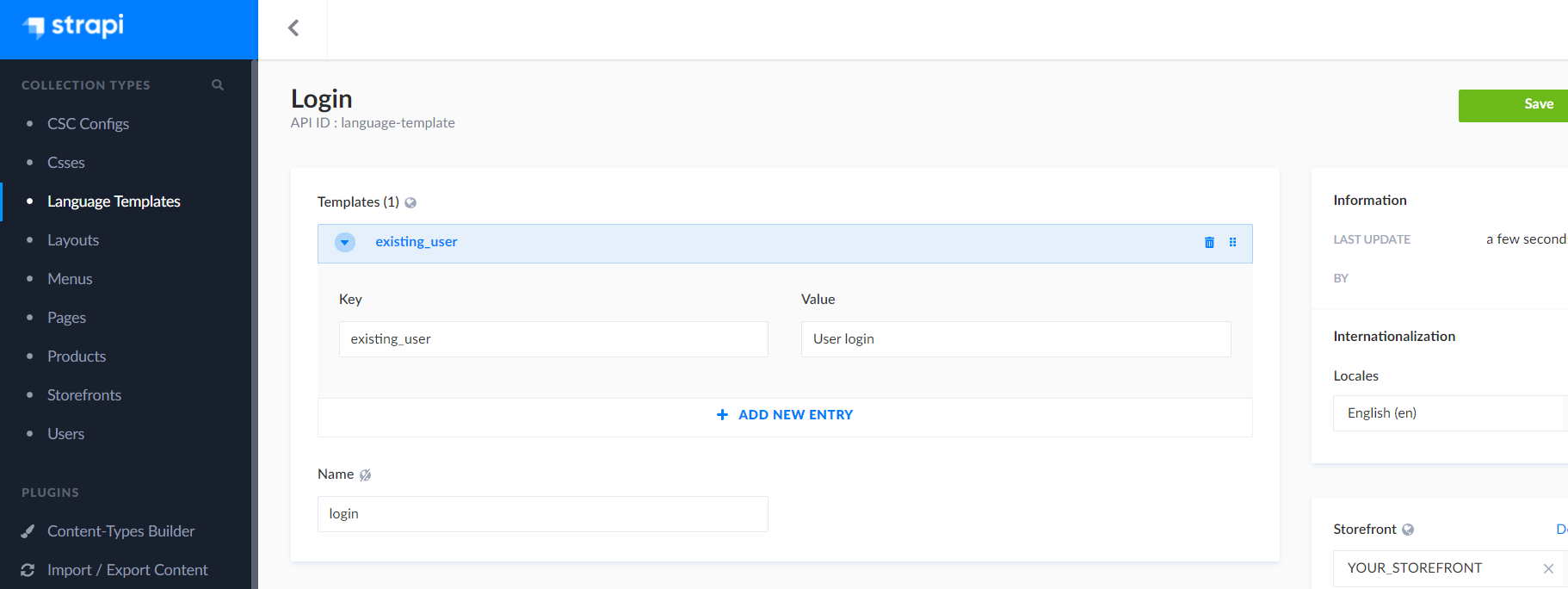
Default language-templates
Component |
Key |
Value |
authentication |
session-timeout |
Your session has timed out. Please log in again |
cart |
added_products |
Added Products: |
cart |
modified_configure |
Configure |
cart |
modified_delete |
Delete |
cart |
modified_products |
Modified Products: |
cart |
new_configure |
Configure |
cart |
new_delete |
Delete |
cart |
shopping_cart |
Shopping Cart |
cart |
show_cart |
Show cart |
cart_summary |
accept_terms |
Accept the Terms & Conditions: |
cart_summary |
added_products |
ADDED PRODUCTS |
cart_summary |
cart_emtpy |
Cart is empty |
cart_summary |
costs |
COSTS |
cart_summary |
costs_per_month_inner |
Costs per month: |
cart_summary |
costs_per_month_outer |
Costs per month: |
cart_summary |
installation_date |
Date for installation: |
cart_summary |
modified_products |
MODIFIED PRODUCTS |
cart_summary |
one_time_inc_installation_inner |
One time fees including Installation: |
cart_summary |
one_time_inc_installation_outer |
One time fees including Installation: |
cart_summary |
order_daft |
A request with ID ${cart.draftId} has been successfully submitted |
cart_summary |
order_draft_title |
Success |
cart_summary |
order_placed |
An order with ID ${order.id} has been placed successfully |
cart_summary |
order_placed_title |
Success |
cart_summary |
product_configure_inner |
Configure |
cart_summary |
product_configure_outer |
Configure |
cart_summary |
product_delete_inner |
Delete |
cart_summary |
product_delete_outer |
Delete |
cart_summary |
remove_product |
Removed product: |
cart_summary |
remove_product_title |
Removed from cart |
cart_summary |
shopping_cart |
Shopping Cart |
cart_summary |
summary |
Summary |
cart_summary |
total_monthly_costs |
Total Monthly Costs |
cart_summary |
total_onetime_costs |
Total Onetime Costs |
cart-config |
amount |
Amount: |
cart-config |
city |
City |
cart-config |
configure_product |
Configure Product |
cart-config |
cost_per_month |
Costs per month: |
cart-config |
infonova_cart |
Infonova Cart |
cart-config |
month |
/ mo |
cart-config |
monthly |
monthly: |
cart-config |
once |
once: |
cart-config |
one_time_fees_with_installation |
One time fees including Installation: |
cart-config |
order_configuration |
Order Configuration |
cart-config |
province |
Province |
cart-config |
request_quote |
Request Quote |
cart-config |
Search |
Search |
cart-config |
state |
State |
cart-config |
street |
Street |
cart-config |
street_number |
Street number |
cart-config |
summary.checkout |
Checkout |
cart-config |
summary.configure-product |
Configure Product |
cart-config |
summary.continue-shopping |
Continue Shopping |
cart-config |
summary.costs-per-month |
Costs per month: |
cart-config |
summary.one-time-fees |
One time fees including Installation: |
cart-config |
summary.product-summary |
Product Summary: |
cart-config |
use_current_location |
Use current location |
cart-config |
your_order |
Your Order: |
cart-config |
your_quote |
Your Quote: |
cart-config |
zip |
ZIP |
modify-cart-config |
monthly |
monthly: |
modify-cart-config |
once |
once: |
modify-cart-config |
summary.configure-product |
Configure Product |
modify-cart-config |
summary.product-summary |
Product Summary |
modify-cart-config |
summary.one-time-fees |
One time fees including Installation: |
modify-cart-config |
summary.costs-per-month |
Costs per month: |
modify-cart-config |
summary.checkout |
Checkout |
modify-cart-config |
summary.continue-shopping |
Continue Shopping |
customer_registration |
submit_success |
Customer has been requested successfully |
customer_registration |
submit_title |
Customer Request |
CUSTOMER_VIEW |
BILLING_HEADER_TEXT |
Billing Address: |
CUSTOMER_VIEW |
BUSINESS_LEGAL_NAME |
Legal Name: |
CUSTOMER_VIEW |
BUSINESS_LEGAL_NAME_PLACEHOLDER |
Your Legal Name |
CUSTOMER_VIEW |
BUSINESS_NAME |
Business Name: |
CUSTOMER_VIEW |
BUSINESS_NAME_PLACEHOLDER |
Your Business Name |
CUSTOMER_VIEW |
BUSINESS_NUMBER |
Business Number: |
CUSTOMER_VIEW |
BUSINESS_NUMBER_CODE |
FN: |
CUSTOMER_VIEW |
BUSINESS_NUMBER_PLACEHOLDER |
Your Business Number |
CUSTOMER_VIEW |
BUSINESS_TYPE |
Business Type: |
CUSTOMER_VIEW |
CANCEL_BUTTON |
Cancel |
CUSTOMER_VIEW |
CITY |
City: |
CUSTOMER_VIEW |
CITY_PLACEHOLDER |
Your City |
CUSTOMER_VIEW |
CONTACT_HEADER_TEXT |
Contact: |
CUSTOMER_VIEW |
COUNTRY |
Country: |
CUSTOMER_VIEW |
COUNTRY_PLACEHOLDER |
Your Country: |
CUSTOMER_VIEW |
CUSTOMER_EDIT_VIEW_HEADER_TEXT |
Your Account |
CUSTOMER_VIEW |
EDIT_BILLING_ADDRESS_FORM_HEADER |
Edit Billing Address: |
CUSTOMER_VIEW |
EDIT_BUSINESS_FORM_HEADER |
Edit Business Details: |
CUSTOMER_VIEW |
EDIT_CONTACT_ADDRESS_HEADER |
Edit Contact Address: |
CUSTOMER_VIEW |
EDIT_CONTACT_DETAILS_HEADER |
Edit Contact Details: |
CUSTOMER_VIEW |
EMAIL_OPTIONAL |
E-Mail: |
CUSTOMER_VIEW |
FAMILY_EMAIL_PLACEHOLDER |
Your E-Mail Address |
CUSTOMER_VIEW |
FAMILY_MOBILE_PHONE_PLACEHOLDER |
Your Mobile Phone |
CUSTOMER_VIEW |
FAMILY_NAME |
Last Name: |
CUSTOMER_VIEW |
FAMILY_NAME_PLACEHOLDER |
Your Family Name |
CUSTOMER_VIEW |
FAMILY_PHONE_PLACEHOLDER |
Your Phone |
CUSTOMER_VIEW |
GIVEN_NAME |
First Name: |
CUSTOMER_VIEW |
GIVEN_NAME_PLACEHOLDER |
Your Name |
CUSTOMER_VIEW |
INDUSTRY_TYPE |
Industry Type: |
CUSTOMER_VIEW |
MOBILE_PHONE_REQUIRED |
Mobile Phone: |
CUSTOMER_VIEW |
PHONE_OPTIONAL |
Phone: |
CUSTOMER_VIEW |
POSTCODE |
Post code: |
CUSTOMER_VIEW |
POSTCODE_PLACEHOLDER |
Post code |
CUSTOMER_VIEW |
PREFERRED_HEADER_TEXT |
Preferred Contact: |
CUSTOMER_VIEW |
PREFERRED_LANGUAGE |
Preferred Language: |
CUSTOMER_VIEW |
PREFERRED_LANGUAGE_TEXT |
Preferred Language: |
CUSTOMER_VIEW |
PREFERRED_METHOD |
Preferred Method: |
CUSTOMER_VIEW |
PREFERRED_OPTION_EMAIL |
|
CUSTOMER_VIEW |
PREFERRED_OPTION_MOBILE |
Mobile Phone |
CUSTOMER_VIEW |
PREFERRED_OPTION_PHONE |
Phone |
CUSTOMER_VIEW |
SAVE_BUTTON |
Save Changes |
CUSTOMER_VIEW |
STREET_NAME |
Address: |
CUSTOMER_VIEW |
STREET_NAME_PLACEHOLDER |
Your Address |
dashboard |
hello |
Hello |
dashboard |
monthly_invoices |
Monthly Invoices |
dashboard |
more |
more |
dashboard |
most_recent_orders |
Most recent orders |
dashboard |
no_recent_orders |
No recent orders |
dashboard |
recommend |
Recommendations |
dashboard |
see_all_orders |
See all orders |
dashboard |
see_more_month |
See more |
dashboard |
see_more_total |
See more |
dashboard |
see_orders |
See orders |
dashboard |
see_products |
See products |
dashboard |
service_fee |
Service fee per product |
dashboard |
tooltip |
This chart shows the sum of your monthly spendings. The vertical axis represents the amount in Euro and the horizontal axis shows the past six months. |
dashboard |
tooltip_recommend |
Click on images to get more information about the products. |
file-picker |
add-file |
Add File |
file-picker |
confirm |
Confirm |
file-picker |
discard-changes |
Discard |
file-picker |
invalid-files-selected |
Please select max ${maxNumberOfSelectableFiles} files with extension ${allowedFileExtensions} and max file size ${maxSizePerFile} |
file-picker |
placeholder |
Select max. ${maxNumberOfSelectableFiles}, ${allowedFileExtensions}, ${maxSizePerFile} each |
infonova-cart-summary |
costs_per_month |
Costs per month: |
infonova-cart-summary |
infonvoa_cart |
Infonova Cart |
infonova-cart-summary |
one_time_fees_inc_installation |
One time fees including Installation: |
infonova-cart-summary |
order_summary |
Order Summary |
infonova-cart-summary |
your_order |
Your Order: |
invoices |
date |
Date |
invoices |
download_invoice |
Download invoice |
invoices |
invoices |
Invoices |
invoices |
invoices_modal |
Invoices |
invoices |
modal_download |
Download invoice |
invoices |
modal_total |
Total |
invoices |
monthly_invoices |
Monthly Invoices |
invoices |
number |
Number |
invoices |
state |
State |
invoices |
status_open |
Open |
invoices |
status_partial |
Partially Paid |
invoices |
status_preparing |
Preparing |
invoices |
status_settled |
Settled |
invoices |
status_unknown |
Unknown |
invoices |
tooltip |
This chart shows the sum of your monthly spendings. The vertical axis represents the amount in Euro and the horizontal axis shows the past six months. |
invoices |
total |
Total |
login |
account |
Account |
login |
create_customer_account_user |
Create Customer Account User |
login |
create_new_account |
Create new Account |
login |
existing_user |
Log in existing user |
login |
log_in |
Log in |
login |
orders |
Orders |
login |
user_menu_login |
Log in |
login |
user_menu_logout |
Logout |
orders |
no_orders |
You don’t have any active orders yet. |
orders |
order_date_prefix |
on |
orders |
order_date_unknown |
Unknown |
orders |
order_hide_details |
Hide details |
orders |
order_id |
Order ID: |
orders |
order_placed |
Order Placed: |
orders |
order_see_details |
See details |
orders |
order_show_less |
Show less |
orders |
order_show_more |
Show more |
orders |
order_total_one_time |
One-time Total: |
orders |
order_total_recc_prefix |
|
orders |
order_total_recc_suffix |
per month |
orders |
order_total_service |
Service Total: |
orders |
search_description |
Search for order id |
orders |
search_result_empty |
Sorry, no results were found for: |
orders |
time_period |
Time period |
product_description |
add_successfully |
Added successfully |
product_description |
add_title |
Added to cart |
product_description |
failed_to_add_product |
Failed to add product to cart |
product_description |
failed_to_add_product_title |
Error |
product_description |
no_product_configured |
No target for product configured |
product_description |
no_product_configured_title |
Error |
products |
actions_select |
Actions |
products |
buy_again |
Buy again |
products |
no_products |
You don’t have any active products yet. |
products |
per_month |
per month |
products |
products_search |
Search for name or tag |
products |
search_result_empty |
Sorry, no results were found for: |
products |
tags_cancel |
Cancel |
products |
tags_header |
Tags |
products |
tags_info |
Enter a comma after each tag. |
products |
tags_save |
Save tags |
TICKET_MANAGEMENT |
CANCEL |
Cancel |
TICKET_MANAGEMENT |
CREATE_TICKET_CATEGORY |
Category |
TICKET_MANAGEMENT |
CREATE_TICKET_DESC |
Description |
TICKET_MANAGEMENT |
CREATE_TICKET_DESC |
Description* |
TICKET_MANAGEMENT |
CREATE_TICKET_E_MAIL_OPTION |
|
TICKET_MANAGEMENT |
CREATE_TICKET_FIXEDLINE_OPTION |
Fixed Line |
TICKET_MANAGEMENT |
CREATE_TICKET_HEADER |
Create Ticket |
TICKET_MANAGEMENT |
CREATE_TICKET_MOBILE_PHONE_OPTION |
Mobile Phone |
TICKET_MANAGEMENT |
CREATE_TICKET_NOTIFICATION_METHOD |
Notification Method |
TICKET_MANAGEMENT |
CREATE_TICKET_NOTIFICATION_METHOD |
Notification Method* |
TICKET_MANAGEMENT |
CREATE_TICKET_PRODUCT_INV_ORDER_NMB |
Product Inventory or Order Number* |
TICKET_MANAGEMENT |
CREATE_TICKET_U_DOC |
Upload Documents |
TICKET_MANAGEMENT |
CUSTOMER |
You |
TICKET_MANAGEMENT |
DESCRIPTION_ERROR |
Minimum 10 characters |
TICKET_MANAGEMENT |
HELPDESK |
Helpdesk |
TICKET_MANAGEMENT |
SUBMIT |
Create Ticket |
TICKET_MANAGEMENT |
TICKET_DETAILS_ATTACHMENTS |
Attachments |
TICKET_MANAGEMENT |
TICKET_DETAILS_COMMENTS |
Comments |
TICKET_MANAGEMENT |
TICKET_DETAILS_DESCRIPTION |
Description |
TICKET_MANAGEMENT |
TICKET_DETAILS_FILE_UPLOAD_MENU_BUTTON_DELETE |
Delete |
TICKET_MANAGEMENT |
TICKET_DETAILS_FILE_UPLOAD_MENU_BUTTON_DOWNLOAD |
Download |
TICKET_MANAGEMENT |
TICKET_DETAILS_FILE_UPLOAD_MENU_BUTTON_OPEN |
Open |
TICKET_MANAGEMENT |
TICKET_DETAILS_TICKET_ID |
Case # |
TICKET_MANAGEMENT |
TICKET_DETAILS_UPLOAD |
Upload |
TICKET_MANAGEMENT |
TICKET_LIST_ATTACHMENTS_HEADER |
Attachments |
TICKET_MANAGEMENT |
TICKET_LIST_CASE_HEADER |
Case# |
TICKET_MANAGEMENT |
TICKET_LIST_CAT_TITLE_HEADER |
Category / Title |
TICKET_MANAGEMENT |
TICKET_LIST_CREATED_HEADER |
Created |
TICKET_MANAGEMENT |
TICKET_LIST_NOTES_HEADER |
Notes |
TICKET_MANAGEMENT |
TICKET_LIST_STATUS_HEADER |
Status |
TICKET_MANAGEMENT |
TICKET_MANAGEMENT_CREATE_TICKET_BTN |
Create Ticket |
TICKET_MANAGEMENT |
TICKET_MANAGEMENT_TICKETS_HEADER |
Tickets |
Publish Infonova Product Offering to Experience Framework
Infonova UI enables operators of the Infonova tenant to use a non-technical procedure to onboard Infonova product offers of the tenant’s product catalog onto a marketplace environment. This process includes creating the Product entity, the product’s marketing Page as well as the customer Shopping Cart Configuration.
The function can be initiated in the Infonova UI offer-management state on the offer’s details page top-right "Actions" menu entry "Marketplace Configuration". As soon as the process created the Product and Page entities, the operator will be redirected to a new UI state that provides a multi-step wizard where the details of the onboarded product can be customized.
This wizard consists of the following steps:
| Step | Description |
|---|---|
Base Configuration |
Configure basic information of the product including title, description, marketing starting price, image, currency, etc. Component also provides an iframe of the marketplace showing the product card. The page used for the iframe is configured by the channel parameter |
Configuration View |
Configure the customer product configuration view. The component features an iframe of the marketplace cart configuration builder and helps the operator create the Cart Configuration JSON Object that defines the customer’s product configuration view. The page used for the iframe is defined by the channel parameter |
Product Marketing |
Design and change the product marketing page with the help of a WYSIWYG editor. The editor is running on the marketplace app and will be iframed. The page slug used for the iframe is the product’s marketing page including the |
Review |
The last step of the wizard features a summary of the product’s properties. The right side of the component features an iframe showing the marketplace’s product catalog page. The page slug used is defined by the channel’s |
Setup process dependencies
In order to use the publish functionality a few steps have to be taken:
1. Download, upload and activate the following ui-customizations on the Infonova tenant:
| Name | Link |
|---|---|
publish-product |
|
publish-product-components |
2. Set up connection to marketplace
The marketplace environment used for publishing a product offering is defined on the Infonova channel entity. That means that each Infonova channel can have a different marketplace referenced with itself. When publishing a product to a marketplace via the Infonova UI product details page, a popup will list all channels that are configured to have a marketplace connection.
To connect a marketplace with an Infonova channel the following Infonova Channels API can be used:
PATCH /r6-api/your-tenant/channels/v1/channels/{{channel}}
with the following payload example:
{
	"parameters": {
		"marketplaceSingleProductCatalogSlug": "single-product-publish",
		"marketplaceApiUri": "https://brightcomstrapi.cluster.sandbox.lab.infonova.com",
		"marketplaceDisplayName": "BrightCom Marketplace",
		"marketplaceName": "SHOPFRONT",
		"marketplaceUri": "https://brightcomstrapi.cluster.sandbox.lab.infonova.com/shopfront",
		"marketplaceCartConfigEditorSlug": "cart-config-builder",
		"marketplaceProductCatalogSlug": "product-catalog"
	}
}
3. Create Product Marketing Page Template
The marketing Page that will be created for the Product during the process will be based on a template that must be deployed on the marketplace environment. The html content of the template of the marketing page can include mustache templates that will be compiled during the creation of the marketing page. The following list contains all available templates:
| Template | Description |
|---|---|
{{displayName}} |
The display name of the product offering. |
{{description}} |
The description of the product offering. |
{{currency}} |
The currency of the product’s charges. If there are multiple currencies the first one will be taken. |
{{price}} |
The recurring price of the first currency of the product. If there are no recurring charges, the once only charges will be taken. |
{{priceDetails}} |
If there are recurring charges, |
{{offering}} |
The key (name) of the product offering |
Internationalization
In Infonova Shopfront, some core entities can have versions of different languages. This makes it possible to load independent versions of one and the same entity from the Strapi backend.

Currently, the following entities support internationalization:
The version of the entity that gets loaded from the Strapi backend depends on the language, that the user selects on the Shopfront UI. If the entity does not have a version of the language that the user selected, the version with the default language will get loaded, instead.
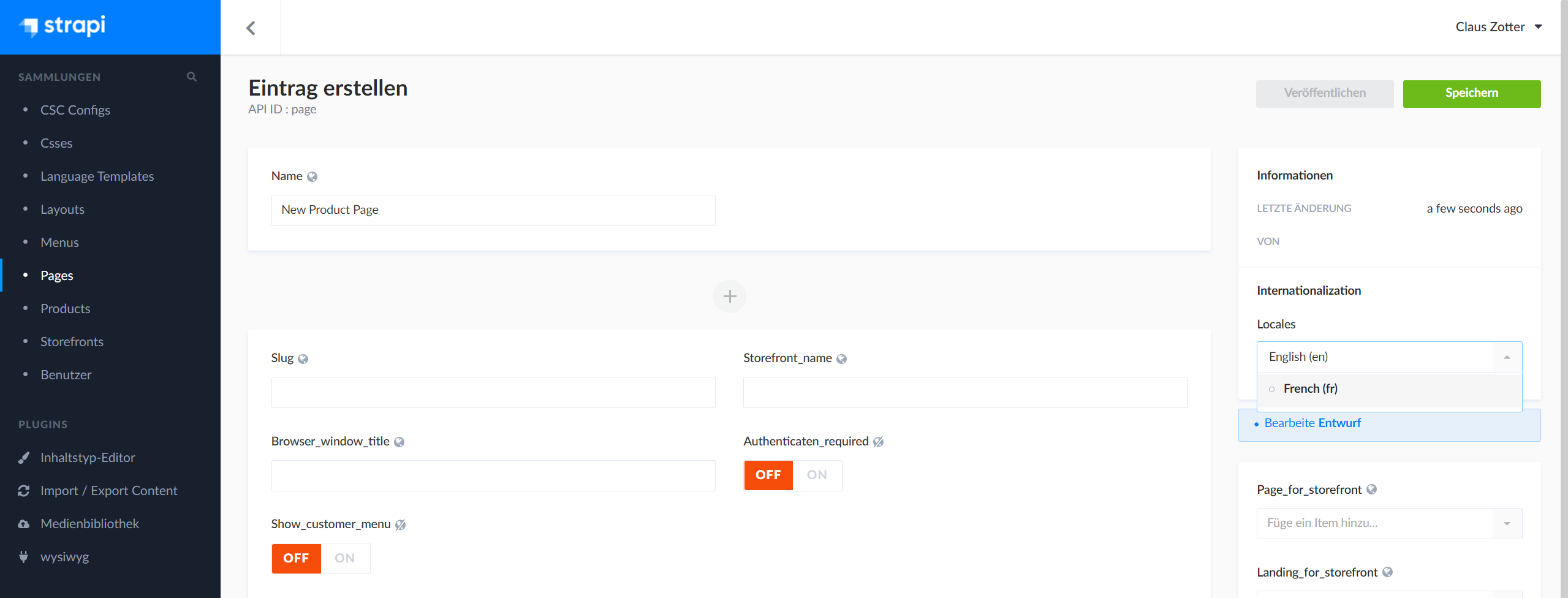
Events
Infonova Shopfront provides an event service that enables the shopfront owner to measure user traffic and engagement.
Event List
Default events emitted by Infonova Shopfront:
-
add_to_cart
-
begin_checkout
-
remove_from_cart
-
view_cart
-
view_item
-
purchase
-
login
  constructor(private infonovaShopfrontEventService: InfonovaShopfrontEventService) {
            infonovaShopfrontEventService.subscribeOnEventName('EVENT_NAME')
            .subscribe( payload  => {
                console.log(payload);
            });
} document['$infonovaShopfrontEventService'].dispatchEvent('EVENT_NAME', { PARAMETERS }) <trigger-event event="EVENT_NAME" payload="PARAMETERS" />add_to_cart
This event signifies that an item was added to a cart for purchase.
Name |
Type |
Required |
Example value |
currency |
string |
Yes |
USD |
value |
number |
Yes |
7.77 |
items |
Array<Item> |
Yes |
Name |
Type |
Required |
Example value |
item_id |
string |
Yes |
SKU_12345 |
item_name |
string |
Yes |
Stan and Friends Tee |
affiliation |
string |
No |
Google Store |
coupon |
string |
No |
SUMMER_FUN |
currency |
string |
No |
USD |
discount |
number |
No |
2.22 |
index |
number |
No |
5 |
item_brand |
string |
No |
|
item_category |
string |
No |
Apparel |
item_category2 |
string |
No |
Adult |
item_category3 |
string |
No |
Shirts |
item_category4 |
string |
No |
Crew |
item_category5 |
string |
No |
Short sleeve |
item_list_id |
string |
No |
related_products |
item_list_name |
string |
No |
Related products |
item_variant |
string |
No |
green |
location_id |
string |
No |
ChIJIQBpAG2ahYAR_6128GcTUEo (the Google Place ID for San Francisco) |
price |
number |
No |
9.99 |
quantity |
number |
No |
1 |
begin_checkout
This event signifies that a user has begun a checkout.
Name |
Type |
Required |
Example value |
currency |
string |
Yes |
USD |
value |
number |
Yes |
7.77 |
coupon |
string |
No |
SUMMER_FUN |
items |
Array<Item> |
Yes |
Name |
Type |
Required |
Example value |
item_id |
string |
Yes |
SKU_12345 |
item_name |
string |
Yes |
Stan and Friends Tee |
affiliation |
string |
No |
Google Store |
coupon |
string |
No |
SUMMER_FUN |
currency |
string |
No |
USD |
discount |
number |
No |
2.22 |
index |
number |
No |
5 |
item_brand |
string |
No |
|
item_category |
string |
No |
Apparel |
item_category2 |
string |
No |
Adult |
item_category3 |
string |
No |
Shirts |
item_category4 |
string |
No |
Crew |
item_category5 |
string |
No |
Short sleeve |
item_list_id |
string |
No |
related_products |
item_list_name |
string |
No |
Related products |
item_variant |
string |
No |
green |
location_id |
string |
No |
ChIJIQBpAG2ahYAR_6128GcTUEo (the Google Place ID for San Francisco) |
price |
number |
No |
9.99 |
quantity |
number |
No |
1 |
remove_from_cart
This event signifies that an item was removed from a cart.
Name |
Type |
Required |
Example value |
currency |
string |
Yes |
USD |
value |
number |
Yes |
7.77 |
items |
Array<Item> |
Yes |
Name |
Type |
Required |
Example value |
item_id |
string |
Yes |
SKU_12345 |
item_name |
string |
Yes |
Stan and Friends Tee |
affiliation |
string |
No |
Google Store |
coupon |
string |
No |
SUMMER_FUN |
currency |
string |
No |
USD |
discount |
number |
No |
2.22 |
index |
number |
No |
5 |
item_brand |
string |
No |
|
item_category |
string |
No |
Apparel |
item_category2 |
string |
No |
Adult |
item_category3 |
string |
No |
Shirts |
item_category4 |
string |
No |
Crew |
item_category5 |
string |
No |
Short sleeve |
item_list_id |
string |
No |
related_products |
item_list_name |
string |
No |
Related products |
item_variant |
string |
No |
green |
location_id |
string |
No |
ChIJIQBpAG2ahYAR_6128GcTUEo (the Google Place ID for San Francisco) |
price |
number |
No |
9.99 |
quantity |
number |
No |
1 |
view_cart
This event signifies that a user viewed their cart.
Name |
Type |
Required |
Example value |
currency |
string |
Yes |
USD |
value |
number |
Yes |
7.77 |
items |
Array<Item> |
Yes |
Name |
Type |
Required |
Example value |
item_id |
string |
Yes |
SKU_12345 |
item_name |
string |
Yes |
Stan and Friends Tee |
affiliation |
string |
No |
Google Store |
coupon |
string |
No |
SUMMER_FUN |
currency |
string |
No |
USD |
discount |
number |
No |
2.22 |
index |
number |
No |
5 |
item_brand |
string |
No |
|
item_category |
string |
No |
Apparel |
item_category2 |
string |
No |
Adult |
item_category3 |
string |
No |
Shirts |
item_category4 |
string |
No |
Crew |
item_category5 |
string |
No |
Short sleeve |
item_list_id |
string |
No |
related_products |
item_list_name |
string |
No |
Related products |
item_variant |
string |
No |
green |
location_id |
string |
No |
ChIJIQBpAG2ahYAR_6128GcTUEo (the Google Place ID for San Francisco) |
price |
number |
No |
9.99 |
quantity |
number |
No |
1 |
view_item
This event signifies that some content was shown to the user. Use this event to discover the most popular items viewed.
Name |
Type |
Required |
Example value |
currency |
string |
Yes |
USD |
value |
number |
Yes |
7.77 |
items |
Array<Item> |
Yes |
Name |
Type |
Required |
Example value |
item_id |
string |
Yes |
SKU_12345 |
item_name |
string |
Yes |
Stan and Friends Tee |
affiliation |
string |
No |
Google Store |
coupon |
string |
No |
SUMMER_FUN |
currency |
string |
No |
USD |
discount |
number |
No |
2.22 |
index |
number |
No |
5 |
item_brand |
string |
No |
|
item_category |
string |
No |
Apparel |
item_category2 |
string |
No |
Adult |
item_category3 |
string |
No |
Shirts |
item_category4 |
string |
No |
Crew |
item_category5 |
string |
No |
Short sleeve |
item_list_id |
string |
No |
related_products |
item_list_name |
string |
No |
Related products |
item_variant |
string |
No |
green |
location_id |
string |
No |
ChIJIQBpAG2ahYAR_6128GcTUEo (the Google Place ID for San Francisco) |
price |
number |
No |
9.99 |
quantity |
number |
No |
1 |
purchase
This event signifies when one or more items is purchased by a user.
Name |
Type |
Required |
Example value |
currency |
string |
Yes |
USD |
transaction_id |
string |
Yes |
T_12345 |
value |
number |
Yes |
12.21 |
affiliation |
string |
No |
Google Store |
coupon |
string |
No |
SUMMER_FUN |
shipping |
number |
No |
3.33 |
tax |
number |
No |
1.11 |
items |
Array<Item> |
Yes |
Name |
Type |
Required |
Example value |
item_id |
string |
Yes |
SKU_12345 |
item_name |
string |
Yes |
Stan and Friends Tee |
affiliation |
string |
No |
Google Store |
coupon |
string |
No |
SUMMER_FUN |
currency |
string |
No |
USD |
discount |
number |
No |
2.22 |
index |
number |
No |
5 |
item_brand |
string |
No |
|
item_category |
string |
No |
Apparel |
item_category2 |
string |
No |
Adult |
item_category3 |
string |
No |
Shirts |
item_category4 |
string |
No |
Crew |
item_category5 |
string |
No |
Short sleeve |
item_list_id |
string |
No |
related_products |
item_list_name |
string |
No |
Related products |
item_variant |
string |
No |
green |
location_id |
string |
No |
ChIJIQBpAG2ahYAR_6128GcTUEo (the Google Place ID for San Francisco) |
price |
number |
No |
9.99 |
quantity |
number |
No |
1 |
login
Send this event to signify that a user has logged in.
Name |
Type |
Required |
Example value |
method |
string |
No |
Google Analytics integration
Infonova Shopfront allows you to submit events directly to a Google Analytics account. This is done by adding a shopfront parameter to the shopfront entity:
Google Analytics Configuration
Shopfront Parameter |
Value |
GAID |
G-XXXXXXXXXX |
Google Tag Manager Configuration
Shopfront Parameter |
Value |
GTMID |
GTM-XXXXXXX |
Automatically collected events by Google Analytics:
-
first_visit
-
page_view
-
scroll
-
user_engagement
-
session_start
Example how to dispatch Google Analytics Event:
    document['$infonovaShopfrontEventService'].dispatchEvent('view_item',
    {
        'currency': 'EUR',
        'value': 77,
        'items': ['item1', 'item2']
    }
)
Pre-integrated Components
There is a list of pre-defined components in Infonova Shopfront that can be either used as a Page content component directly or via their HTML element selector in a generic HTML component.
|
Important
|
Some components require user authorization for making requests to the Infonova API! This can be ensured, by only using those components on pages that have the Authentication_required property. |
Banner Slider
Selector |
- |
Usable in HTML |
no |
Requires user authorization |
no |
The banner slider component shows a rotating banner that cycles through slides that contain a title, sub-title and a link. It can be added to a Page in the Strapi Administrator UI when configuring a page and adding the slide component.

Cart Summary
Selector |
- |
Usable in HTML |
no |
Requires user authorization |
yes |
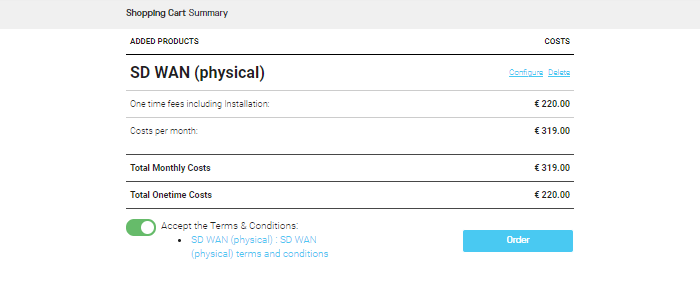
The cart summary component renders the contents of the user’s shopping cart, lists the charges and offers links to configure, delete and submit the products in the shopping cart. It can be added to a Page in the Strapi Administrator UI when configuring a page and adding the Cart Summary component. When configuring the component, the text of the Order button can be configured and the submit-method can be chosen between quote and order. Quote method will submit the shopping cart as an Infonova prospect order and Order method will sub mit the Infonova product order.
A page that contains the cart summary component is usually used as the Storefront's Cart_summary_page.
Add Product to Cart
Selector |
add-product-to-cart |
Usable in HTML |
yes |
Example usage |
|
Requires user authorization |
yes |
The add-product-to-cart web component can be used on a generic HTML content of a Page to render a button, that when clicked by a user, adds the corresponding Product or the Product Variation to the user’s shopping cart. If the user does not have a shopping cart when the user clicks the button, the component will create a new shopping cart.
|
references a Product's Key value |
|
references a Product Variation's Key value. This attribute is optional and is only used, when a variation of a product should be added to the shopping cart. |
|
the text of the rendered button |
|
optional attribute, that can be used and set to |
|
optional attribute, that can be used to configure the button’s text when |
After the product has been added to the cart, Infonova Shopfront UI will navigate to the product configuration page that is configured on the Product's Custom_config_page property. If the product does not have a Custom_config_page the user is redirected to the Storefront's Default_cart_config_page, instead.
For more information of how to set up a product ordering journey see Make a Product orderable via Infonova Shopfront UI.
CSC Dashboard
Selector |
app-dashboard |
Usable in HTML |
yes |
Example usage |
|
Requires user authorization |
yes |
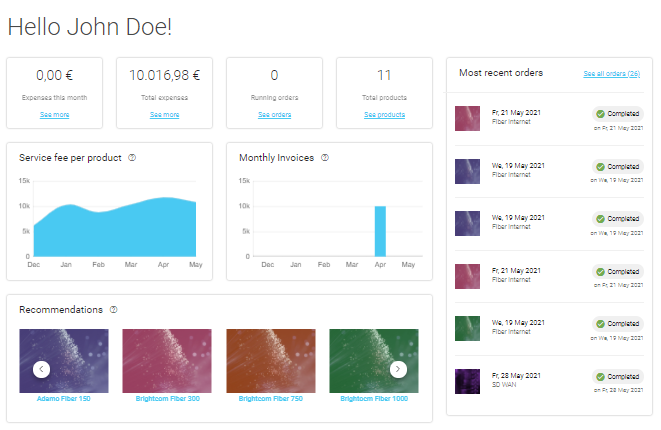
The dashboard web component renders a responsive page with configurable widgets. It can be added to a page in a generic HTML component and uses the Storefront's CSC Config.
|
Tip
|
It makes sense to add the dashboard web component to a Page with the account slug, since it is used, when the user clicks on the Account-link in the user pop-up in the top-right corner of Infonova Shopfront UI.
|
CSC Orders
Selector |
app-orders |
Usable in HTML |
yes |
Example usage |
|
Requires user authorization |
yes |
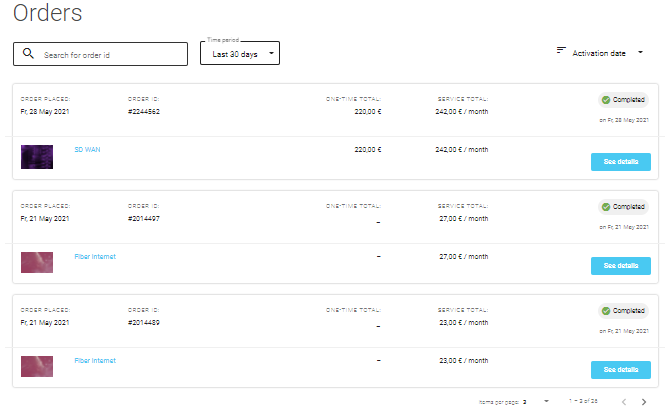
The orders web component renders a responsive page with a list of the user’s product orders. It can be added to a page in a generic HTML component.
|
Tip
|
It makes sense to add the dashboard web component to a Page with the ordersummary slug, since it is used, when the user clicks on the Orders-link in the user pop-up in the top-right corner of Infonova Shopfront UI.
|
CSC Products
Selector |
app-products |
Usable in HTML |
yes |
Example usage |
|
Requires user authorization |
yes |
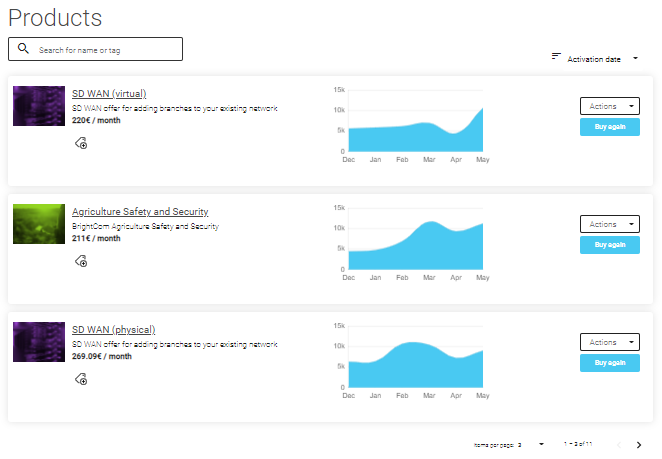
The products web component renders a responsive page with a list of the user’s products in the Infonova product-inventory. It can be added to a page in a generic HTML component.
CSC Invoices
Selector |
app-invoices |
Usable in HTML |
yes |
Example usage |
|
Requires user authorization |
yes |
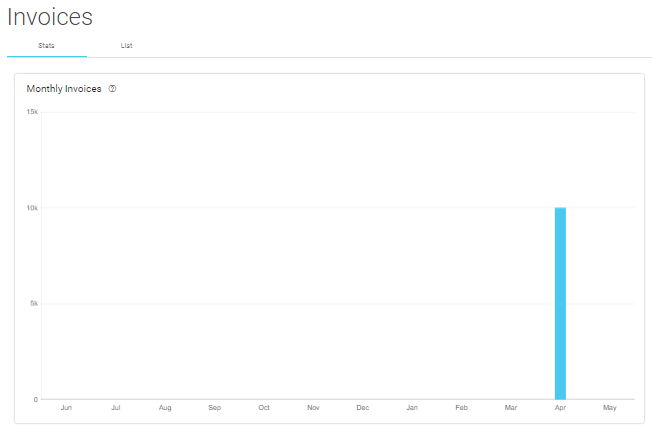
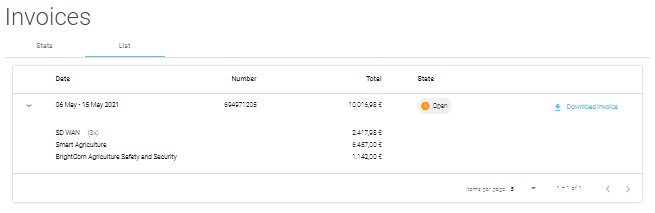
The products web component renders a responsive page with a list of the user’s invoices. It uses the Infonova billing V1 API. It can be added to a page in a generic HTML component.
Modify Product Entity
Selector |
app-modify-product-entity |
Usable in HTML |
yes |
Example usage |
|
Requires user authorization |
yes |
The modify-produt-entity web component makes it possible to configure a Product's change (modify) journey. It can be added to a page in a generic HTML component.
The component uses the browser URL query parameter product and uses it as the id for loading the product via Infonova productInventory V1 API.
For a detailed description of how to configure product change journeys see Create a Product Change-Journey.
Cart Entity Config
Selector |
shopfront-cart-entity-config |
Usable in HTML |
yes |
Example usage |
|
Requires user authorization |
yes |
The cart-entity-config web component makes it possible to configure a shopping cart in order to order a Product. It can be added to a page in a generic HTML component.
To control how charges are displayed in the component, an attribute show-tax can be added.
If the value is false, then charges will be displayed without their tax amount included.
By default, charges are displayed with their tax amounts included.
For more information on how to create a shopping cart journey, see Shopping Cart Configuration and follow the use case described in Make a Product orderable via Infonova Shopfront UI.
Login component
Selector |
shopfront-login |
Usable in HTML |
yes |
Example usage |
|
Example usage with content |
|
Requires user authorization |
no |
The login component is used to render a login Button when user is not logged in and if a user is logged in, the user can open a popup with the following content:
-
display of user’s e-mail address
-
links to navigate to:
-
Account CSC page
-
Orders CSC page
-
Create customer account user form
-
-
Logout
If content is added to the shopfront-login element, the default links are hidden and the html content is renderd, instead of the default links.
It can be added to a page in a generic HTML component.
Conditional content rendering ("show-if") component
Selector |
shopfront-show-if |
Usable in HTML |
yes |
Example usage |
|
Example usage with custom content |
|
Requires user authorization |
no |
The conditional content rendering, or "show-if" web component can be used to display and hide content depending on several conditions.
|
can be set to either |
Post-Login Redirect
Selector |
shopfront-post-login-redirect |
Usable in HTML |
yes |
Example usage |
|
Requires user authorization |
no |
The post-login redirect component can be used to configure the page that the user will be redirected to after logging in on the current page.
By default, the Infonova Shopfront frontend application will redirect the user to the storefront’s landing page.
If the post-login redirect web component is used in either a Layout or a Page's content, then the user will be redirected to the current page, on which the user clicked on the Login button.
The target page can also be customized by using the component’s redirect-page attribute, which takes a Page slug as a value.
|
Note
|
The post-login redirect web component does not have any content. It is only used to customize the post-login redirect. |
SEO
Search Engine Optimization is practice/process of getting website to rank higher in search engines results. The customization and flexibility of Strapi will allow you to optimize your content structure and improve your website SEO.
Sitemaps
Infonova Shopfront automatically generates sitemaps based on you page entities.
You can retrieve the sitemap by using the following url:
-
Using the default shopfront value
-
Using the direct link to the shopfront

Meta Tags
Infonova Shopfront supports Meta Tags to help search engines determine the content of a page. Those Meta Tags can be defined on storefront level for every page (default / fallback) or specifically for every page.
Prevent indexing
The prevent indexing toggle allows you to add a meta tag that prevents search engines to add your pages to the search index.
Open graph and facebook Meta Tags
The open graph and facebook toggle allows you to automatically create social media tags based on already existing meta tag information on every page.
Storefront Meta Tags
The following Meta Tags can be defined on storefront level:
Meta Tags |
Component |
default_title |
Text |
default_description |
Text |
default_keywords |
Text |
default_image_alt_text |
Text |
default_meta_image |
Media |
default_type |
Text |
prevent_indexing |
Boolean |
open_graph_and_facebook |
Boolean |
custom_meta_tag_mapping |
Component |
global_meta_tags |
Component |
custom_meta_tag_mapping |
Component |
key |
Text |
value |
Enumeration |
global_meta_tags |
Component |
key |
Text |
value |
Text |

Page Meta Tags
The following Meta Tags can be defined on page level:
Meta Tags |
Component |
title |
Text |
description |
Text |
keywords |
Text |
type |
Text |
meta_image |
Media |
image_alt_text |
Text |
prevent_indexing |
Boolean |
canonical |
Relation with Page |
custom_meta_tags |
Component |
custom_meta_tags |
Component |
key |
Text |
value |
Text |

Shopping Cart Configuration
After adding a product to the user’s shopping cart, the user will be redirected to the shopping cart configuration page, where he can configure the product’s characteristics. The configuration form is an abstraction layer above the offer configuration of the tenant’s Infonova product catalogue with the aim to hide the complexity of the product catalog offering and making it easier for the user to configure the products he wants to order.
The cart configuration page is rendered with the help a JSON object configured and linked to a Product entity. The JSON object can be saved in the Strapi Media Library or on any other server. With the help of the JSON object the product’s configuration page can be configured. It consists of sections which can have multiple features that interact with the Infonova product catalog. Features can have pre-defined types, like address, text, select, etc. or a custom type that can be integrated into Infonova Shopfront via scripts containing custom elements (web components) made by a developer.
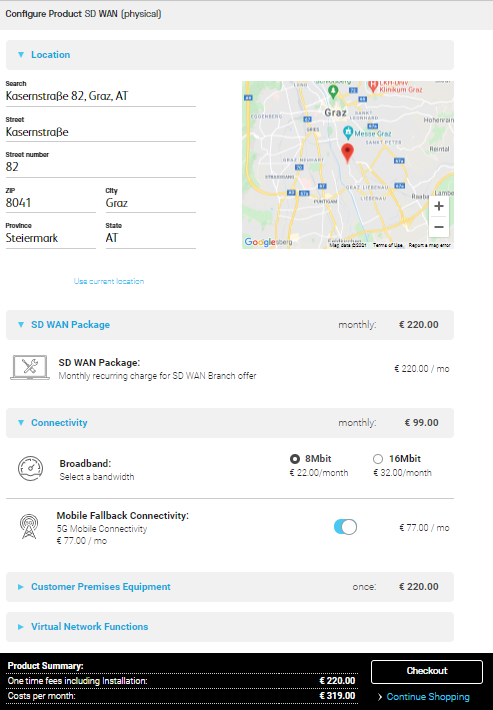
Tax Amount Display of Charges
By default, the charges that are displayed during the configuration of the shopping cart are displayed with their tax amount included.
To change the display of charges to net amounts, a Storefront parameter with the key SHOW_PRODUCT_CONFIG_TAX is used.
If the parameter’s value is true, then charges will include the tax amount, otherwise tax amounts are excluded.
It’s also possible to set the tax display mode on cart-configuration component level, which has a higher priority than the global storefront parameter:
<shopfront-cart-entity-config show-tax="true"></shopfront-cart-entity-config>Cart Configuration JSON Object
The cart configuration JSON object defines the customer experience of ordering a product in Infonova Shopfront UI. It is linked to a Product by providing the URL of the JSON object to the product entity’s Cart_config_url property. For a detailed walk-through of creating a product order journey see Make a Product orderable via Infonova Shopfront UI.
{
  "sections": [
    {
      "name": "SD WAN Package",
      "open": true,
      "page": "1",
      "features": [
        {
          "type": "readonly",
          "target": {
            "type": "product-characteristic",
            "productCharacteristic": {
              "key": "MRC_SD_WAN",
              "offerKey": "RT_SD_WAN"
            }
          }
        }
      ]
    },
    {
      "name": "Region",
      "open": true,
      "page": "1",
      "features": [
        {
          "type": "selectdropdown",
          "displayName": "Choose Region",
          "description": "",
          "icon": "https://strapi-develop.s3.eu-west-1.amazonaws.com/region_0edbedb1b1.svg",
          "target": {
            "type": "service-characteristic",
            "serviceCharacteristic": {
              "serviceKey": "SD_WAN",
              "serviceCharacteristicKey": "SD_WAN:REGION",
              "serviceProvider": "BEYONDCOM"
            }
          }
        }
      ]
    },
    {
      "name": "Virtual Network Functions",
      "open": true,
      "page": "2",
      "features": [
        {
          "type": "toggle",
          "icon": "https://strapi-develop.s3.eu-west-1.amazonaws.com/security_347223322d.svg",
          "pricingTemplate": "${currency} ${charge} / mo",
          "target": {
            "type": "service-characteristic",
            "serviceCharacteristic": {
              "serviceKey": "SD_WAN",
              "serviceCharacteristicKey": "SD_WAN:FIREWALL",
              "serviceProvider": "BEYONDCOM"
            }
          }
        },
        {
          "type": "toggle",
          "icon": "https://strapi-develop.s3.eu-west-1.amazonaws.com/bandwidth_664314c90d.svg",
          "pricingTemplate": "${currency} ${charge} / mo",
          "target": {
            "type": "service-characteristic",
            "serviceCharacteristic": {
              "serviceKey": "SD_WAN",
              "serviceCharacteristicKey": "SD_WAN:WAN_OPTIMIZER",
              "serviceProvider": "BEYONDCOM"
            }
          }
        }
      ]
    }
  ]
}
Sections
{
  "sections": [
    {
      "name": "Section header",
      "open": "true",
      "page": "1",
      "features": [
        {}
      ]
    }
  ]
}| Property | Description | Mandatory |
|---|---|---|
name |
Display name of the section’s header |
yes |
open |
If true, the section is initially expanded |
|
page |
Number of the page on which to show the section |
|
features |
List of the section’s features. See Features for more details. |
Pages
{
  "sections": [
    {
      "name": "Section header",
      "open": true,
      "page": "1",
      "features": [
        {}
      ]
    }
  ],
  "pages": [
    {
      "key": "1",
      "name": "Page 1",
    }
  ]
}| Property | Description | Mandatory |
|---|---|---|
key |
Page key for language
templates. To define a language template, create an entry in Strapi language templates in the format |
yes |
name |
Display name of the page. Fall-back value, if there is no language-template found. |
Features
{
  "target": {},
  "options": [
    {}
  ],
  "show": "availableInCart",
  "type": "feature-type",
  "pricingTemplate": "${currency} ${charge} / mo",
  "icon": "http://iconurl.com/icon.svg",
  "isAddress": false,
  "displayName": "Feature display name",
  "description": "Feature description"
}
Some pre-defined feature types require a target, others require options. For more details see the descriptions of the pre-defined feature types below.
| Property | Description | Mandatory |
|---|---|---|
target |
The Infonova product catalog target. See Feature Targets for more information. |
depends on feature type |
options |
The Infonova product catalog target options |
depends on feature type |
show |
Used to show and hide features. Can have two values, availableInCart or activeInCart. When setting the value to availableInCart, the feature will be displayed if the target or any option’s target is available to be added to the shopping cart. When setting the value to activeInCart, the feature will only be displayed if the target or any option’s target is already active in the user’s shopping cart. By default, the feature will always be displayed! |
no |
type |
Type of the feature. Can be one of the pre-defined types or a custom type. See Feature Types for more information. |
yes |
pricingTemplate |
The template for the pricing display. |
no |
isAddress |
Determines if the feature is an address-type feature |
no |
displayName |
Override text for the feature’s display name. By default, the feature-component will use the display name of the feature configured in the Infonova product catalogue. |
no |
description |
Override text for the feature’s description. By default, the feature-component will use the description of the feature configured in the Infonova product catalogue. |
no |
validation |
Validation rules of the feature. See Feature Validation for more information. |
no |
Feature Types
Feature types define how the feature should be rendered on the cart configuration page in Infonova Shopfront.
There is a list of pre-defined, ready-to-use feature types, but custom types can also be created and used.
The way Infonova Shopfront UI renders the feature is by using a naming convention for the custom element (web component): for every feature, Infonova Shopfront renders the component with the selector infonova-cart-feature-featureName (e.g. infonova-cart-feature-select for a feature with type select).
That means that for a feature with type custom, a custom element (web-component) has to be provided with the selector infonova-cart-feature-custom.
For a detailed walk-through of how to create a custom feature type see Create a Custom Cart Configuration Feature Type.

select|
Important
|
Every feature type has a certain set of supported feature targets. Not every combination makes sense! |
Product |
Product Characteristic |
Service |
Service Characteristic |
Service Characteristic Parameter |
Resource |
|
Address |
NO |
NO |
NO |
YES |
NO |
NO |
Toggle |
YES |
YES |
YES |
YES |
NO |
NO |
Select |
YES |
YES |
YES |
YES |
YES |
YES |
Quantity |
YES |
YES |
YES |
YES |
NO |
YES |
Readonly |
YES |
YES |
YES |
YES |
NO |
YES |
Select Dropdown |
NO |
YES |
YES |
YES |
YES |
NO |
Text |
NO |
NO |
NO |
YES |
NO |
NO |
Mass Ordering |
NO |
NO |
NO |
NO |
NO |
NO |
Address
Google Maps integration to select an address feature value.
-
service-characteristic
address.{
"type": "address",
"isAddress": true,
"target": {
"type": "service-characteristic",
"serviceCharacteristic": {
"serviceKey": "SERVICE_KEY",
"serviceCharacteristicKey": "SERVICE_KEY:ADDRESS_FEATURE",
"serviceProvider": "SERVICE_PROVIDER"
}
}
}
addressToggle
Enable or disable a feature in the shopping cart.
-
product -
product-characteristic -
service -
service-characteristic
toggle.{
"type": "toggle",
"target": {
"type": "service-characteristic",
"serviceCharacteristic": {
"serviceKey": "SERVICE_KEY",
"serviceCharacteristicKey": "SERVICE_KEY:TOGGLE_FEATURE",
"serviceProvider": "SERVICE_PROVIDER"
}
},
"pricingTemplate": "${currency} ${charge} per month"
}
toggleSelect
Select one of multiple options in the shopping cart. If the Infonova target type is "Service Characteristic Parameter", options cannot be mixed with other Infonova target types.
-
product -
product-characteristic -
service -
service-characteristic -
service-characteristic-parameter -
resource
select.{
"type": "select",
"options": [
{
"name": "Option 1",
"target": {
"type": "service-characteristic-parameter",
"serviceCharacteristicParameter": {
"serviceKey": "SERVICE_KEY",
"serviceCharacteristicKey": "SERVICE_KEY:SELECT_FEATURE",
"serviceCharacteristicParameterKey": "option1"
}
}
},
{
"name": "Option 2",
"target": {
"type": "service-characteristic-parameter",
"serviceCharacteristicParameter": {
"serviceKey": "SERVICE_KEY",
"serviceCharacteristicKey": "SERVICE_KEY:SELECT_FEATURE",
"serviceCharacteristicParameterKey": "option2"
}
}
}
]
}
selectQuantity
Set the amount of certain features in the shopping cart.
-
product -
product-characteristic -
service -
service-characteristic -
resource
quantity.{
"type": "quantity",
"target": {
"type": "service-characteristic",
"serviceCharacteristic": {
"serviceKey": "SERVICE_KEY",
"serviceCharacteristicKey": "SERVICE_KEY:AMOUNT_FEATURE"
}
}
}
quantityReadonly
Displays a read-only feature without user interaction.
-
product -
product-characteristic -
service -
service-characteristic -
resource
readonly.{
"type": "readonly",
"target": {
"type": "product-characteristic",
"productCharacteristic": {
"key": "PRODUCT_FEATURE",
"offerKey": "OFFER"
}
}
}
readonlySelect Dropdown
Select one of multiple options in the shopping cart. If the Infonova target type is "Service Characteristic Parameter", options are loaded automatically.
-
product-characteristic -
service -
service-characteristic -
service-characteristic-parameter
selectdropdown.{
"type": "selectdropdown",
"target": {
"type": "service-characteristic",
"serviceCharacteristic": {
"serviceKey": "SERVICE_KEY",
"serviceCharacteristicKey": "SERVICE_KEY:SELECT_FEATURE",
"serviceProvider": "SERVICE_PROVIDER"
}
}
}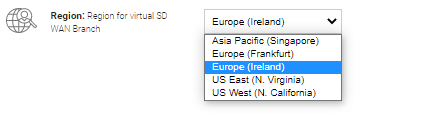
selectdropdownText
Set a String value of a service feature in the shopping cart.
-
service-characteristic
text.{
"type": "text",
"target": {
"type": "service-characteristic",
"serviceCharacteristic": {
"serviceKey": "SERVICE_KEY",
"serviceCharacteristicKey": "SERVICE_KEY:SELECT_FEATURE",
"serviceProvider": "SERVICE_PROVIDER"
}
}
}
textMass Ordering
Changes the quantity property of the current cart entity that is being configured.
Can be used to enable bulk ordering of a product offering.
The customer-experience of the mass-ordering feature is similar to the quantity feature type.
massordering.{
"type": "massordering",
"icon": "http://iconurl.com/icon.svg",
"displayName": "Amount of orders",
"description": "Order the package in bulk"
}Feature Targets
With the help of targets, features are linked with Infonova product catalogue features of a base offer.
Product
Type identifier: product
OFFERKEY.{
"key": "OFFERKEY",
"offerGroup": "OFFERGROUPKEY"
}| Property | Description | Mandatory |
|---|---|---|
key |
The name of the retail offer of the Infonova product catalog. |
yes |
offerGroup |
The name of the offer group, if the product is in an offer group of a bundle. |
no |
Product Characteristic
Type identifier: product-characteristic
{
  "key": "PRODUCT_FEATURE",
  "offerKey": "OFFERKEY"
}| Property | Description | Mandatory |
|---|---|---|
key |
The name of the product feature. |
yes |
offerKey |
The name of the retail offer of the Infonova product catalog. |
yes |
Resource
Type identifier: resource
{
  "resourceKey": "RESOURCE",
  "resourceReferenceKey": "RESOURCE_GROUP_REFERENCE_KEY",
  "resourceProvider": "RESOURCE_PROVIDER",
  "offerKey": "OFFERKEY"
}| Property | Description | Mandatory |
|---|---|---|
resourceKey |
The name of the resource. |
yes |
resourceReferenceKey |
The name of the resource group reference. |
yes |
resourceProvider |
The name of the resource provider tenant. |
yes |
offerKey |
The key of the offer configuration of the Infonova product catalog. |
yes |
Service
Type identifier: service
{
  "key": "SERVICE_KEY",
  "tenant": "SERVICE_PROVIDER",
  "offerKey": "OFFERKEY"
}| Property | Description | Mandatory |
|---|---|---|
key |
The name of the service. |
yes |
tenant |
The name of the service provider tenant. |
yes |
offerKey |
The name of the retail offer of the Infonova product catalog. |
yes |
Service Characteristic
Type identifier: service-characteristic
{
  "serviceKey": "SERVICE_KEY",
  "serviceCharacteristicKey": "SERVICE_FEATURE",
  "serviceProvider": "SERVICE_TENANT"
}| Property | Description | Mandatory |
|---|---|---|
serviceKey |
The name of the service. |
yes |
serviceCharacteristicKey |
The name of the service feature. |
yes |
serviceProvider |
The name of the service provider tenant. |
yes |
Service Characteristic Parameter
Type identifier: service-characteristic-parameter
{
  "serviceKey": "SERVICE_KEY",
  "serviceCharacteristicKey": "SERVICE_FEATURE",
  "serviceCharacteristicParameterKey": "SERVICE_PROVIDER"
}| Property | Description | Mandatory |
|---|---|---|
serviceKey |
The name of the service. |
yes |
serviceCharacteristicKey |
The name of the service feature. |
yes |
serviceCharacteristicParameterKey |
The value of the service characteristic parameter. |
yes |
Feature Validation
Validation on feature level prevent users from configuring invalid shopping carts on the cart configuration page. The validation rules can be specified on feature level and the validations are automatically performed whenever any input value on the cart configuration page changes.
The validation rules can be configured by adding a validation object to the feature configuration, which supports two fields.
The field templateKey is a string that specifies which language template has to be loaded, see
Error Messages.
The field validators specifies an object containing the validators and its values, see Built-in Validators.
The field templateKey
is optional whereas the validators key is mandatory.
{
  "type": "quantity",
  "validation": {
    "templateKey": "template_key",
    "validators": {
      "min": 1,
      "max": 3
    }
  },
  "target": {
    //  ...
  }
}
Built-in Validators
Shopfront has built-in validators for performing validations.
Each validator is set as an object entry in the validators object as shown in the
example.
For a full list of supported built-in validators see the table below.
Validator |
Value |
Description |
required |
Boolean value, e.g., |
Validates if a certain field is set |
isEmail |
Boolean value, e.g., |
Validates if the input field is an email |
max |
Integer number, e.g., |
Validates if the entered number is less than the supplied value |
min |
Integer number, e.g., |
Validates if the entered number is greater than the supplied value |
regex |
String containing a regular expression, e.g., |
Validates if the input conforms to the regular expression |
Validators are not supported on every feature type, e.g., a quantity feature cannot perform an email validation. The table shows all feature types and all its supported validators.
required |
isEmail |
max |
min |
regex |
|
Address |
YES |
NO |
NO |
NO |
NO |
Toggle |
NO |
NO |
NO |
NO |
NO |
Select |
YES |
NO |
NO |
NO |
NO |
Quantity |
YES |
NO |
YES |
YES |
NO |
Text |
YES |
YES |
NO |
NO |
YES |
Readonly |
NO |
NO |
NO |
NO |
NO |
Select Dropdown |
YES |
NO |
NO |
NO |
NO |
Mass Ordering |
YES |
NO |
YES |
YES |
NO |
Error Messages
Validation error messages can be configured via language templates in Strapi, see Language Templates for further information.
The templateKey is part of a language template entity namethat is used for fetch the errors messages.
If this key is not set, the value default is used instead.
The error messages can be configured by creating a language template entity, where the name of the language template entity is validation. followed by the templateKey value, e.g., validation.default or
validation.template_key.
To customize the error message of a validator create a template with the validator’s name as the template key and the value specifies the associated text.
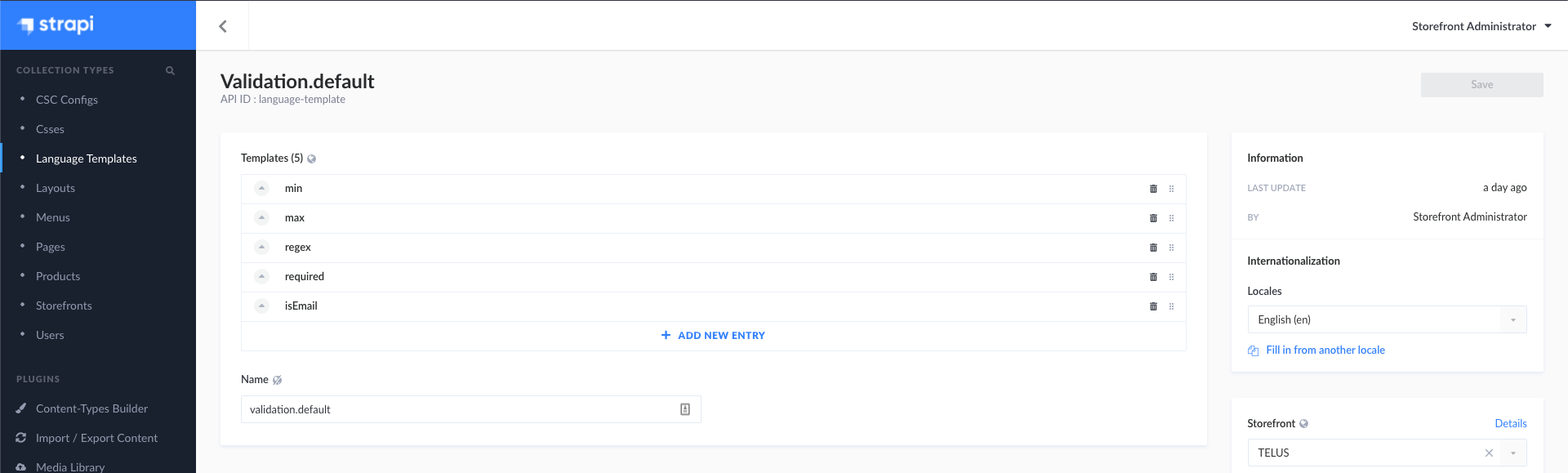
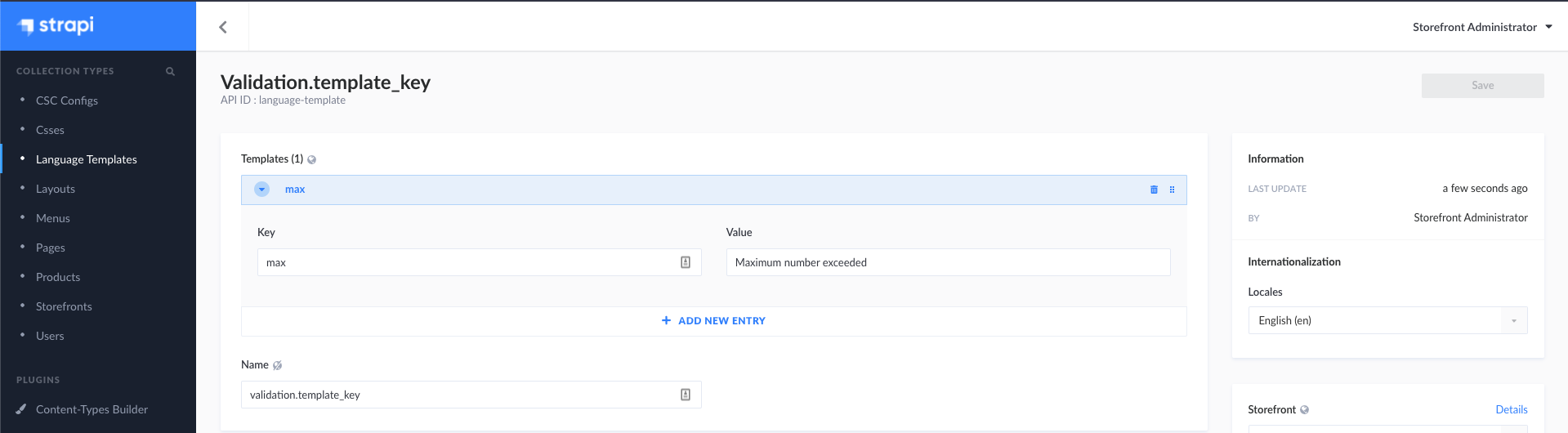
templateKey.The error message test specified in the template also supports built-in variables that are substituted to certain values as described in the table below.
Built-in Variable |
Description |
|
Resolves to the input that the user has entered. |
|
Resolves to the feature description. |
The name of the validator, e.g., |
Resolves to the validation value. |
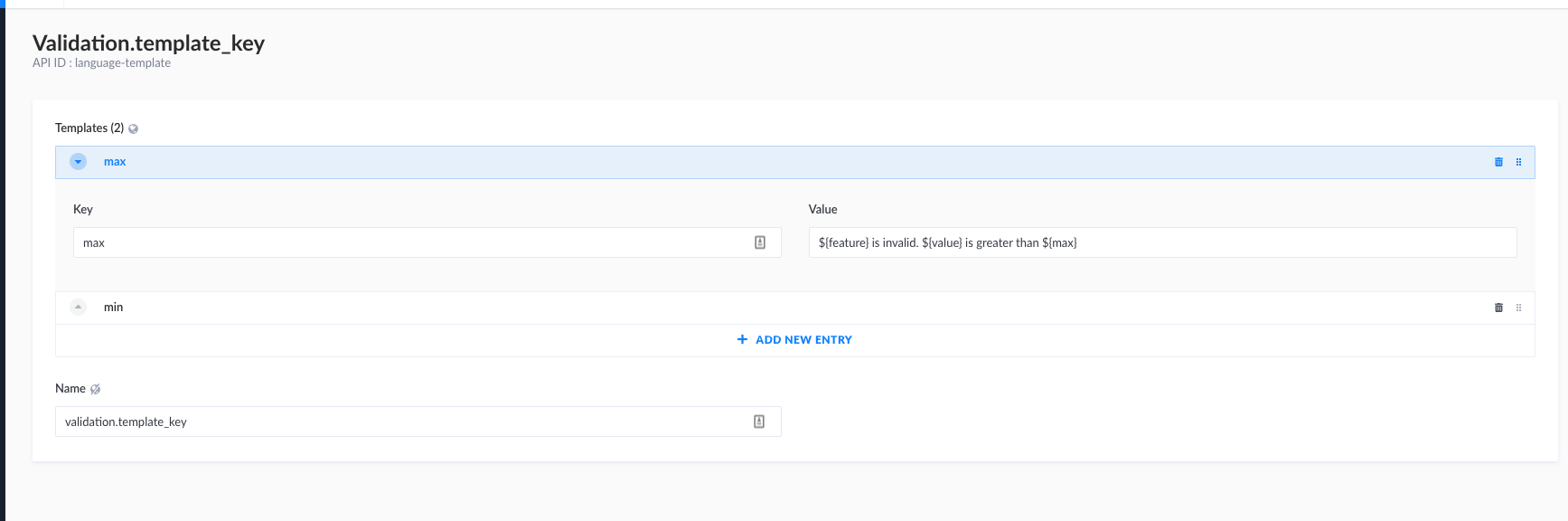

Common Use Cases
The following list serves as a quick reference list and instructions of how to implement common use cases.
Make a Product orderable via Infonova Shopfront UI
In order to make a product orderable via Infonova Shopfront UI we assume, that the offer configuration already exists in the tenant’s Infonova product catalogue. For this example walk-through we have an SD WAN product configuration we want to expose to users of Infonova Shopfront UI.
At first, we have to prepare the Storefront entity and add a default cart-config Page. To achieve this, we navigate to the Page entities on the top-left of the Strapi Administrator UI and create a new page and add the Cart Config component:
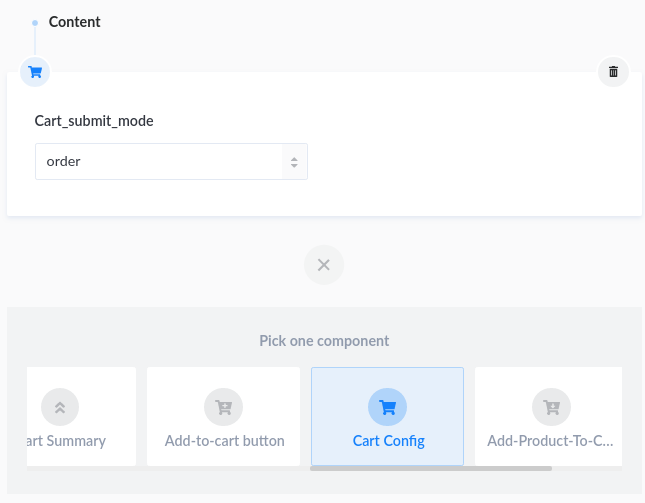
After saving the page entity it has to be referenced in the Default_cart_config_page property of the Storefront.
The next step is to create the Product entity:
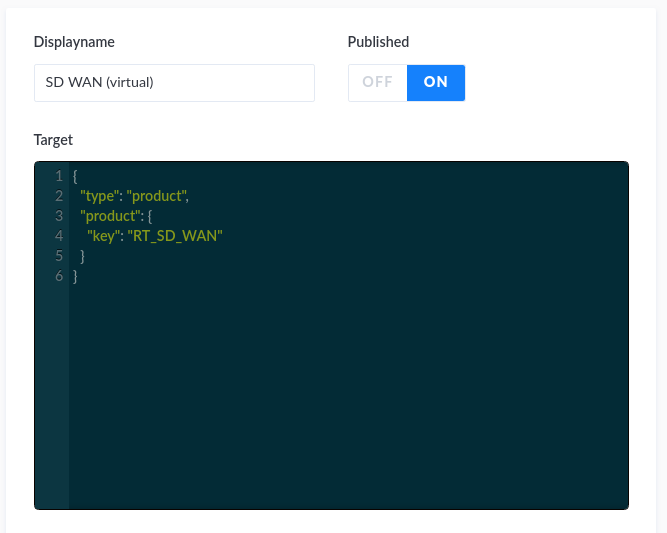
The Target property links the product to an offer configuration of the tenant’s Infonova product catalogue. The product.key property references the key of the base offer in Infonova.
{
  "type": "product",
  "product": {
    "key": "RT_SD_WAN"
  }
}
The next step is to give a Key to the product and to create the Cart Configuration JSON Object which is used to define the user experience when configuring the product offer in Infonova Shopfront UI.

The cart configuration JSON object can be uploaded to the Strapi Media Library, and the URL can be pasted to the Cart_config_url property of the product entity.
{
  "sections": [
    {
      "name": "SD WAN Package",
      "open": true,
      "page": "1",
      "features": [
        {
          "type": "readonly",
          "target": {
            "type": "product-characteristic",
            "productCharacteristic": {
              "key": "MRC_SD_WAN",
              "offerKey": "RT_SD_WAN"
            }
          }
        }
      ]
    },
    {
      "name": "Region",
      "open": true,
      "page": "1",
      "features": [
        {
          "type": "selectdropdown",
          "displayName": "Choose Region",
          "description": "",
          "icon": "https://strapi-develop.s3.eu-west-1.amazonaws.com/region_0edbedb1b1.svg",
          "target": {
            "type": "service-characteristic",
            "serviceCharacteristic": {
              "serviceKey": "SD_WAN",
              "serviceCharacteristicKey": "SD_WAN:REGION",
              "serviceProvider": "BEYONDCOM"
            }
          }
        }
      ]
    },
    {
      "name": "Virtual Network Functions",
      "open": true,
      "page": "2",
      "features": [
        {
          "type": "toggle",
          "icon": "https://strapi-develop.s3.eu-west-1.amazonaws.com/security_347223322d.svg",
          "pricingTemplate": "${currency} ${charge} / mo",
          "target": {
            "type": "service-characteristic",
            "serviceCharacteristic": {
              "serviceKey": "SD_WAN",
              "serviceCharacteristicKey": "SD_WAN:FIREWALL",
              "serviceProvider": "BEYONDCOM"
            }
          }
        },
        {
          "type": "toggle",
          "icon": "https://strapi-develop.s3.eu-west-1.amazonaws.com/bandwidth_664314c90d.svg",
          "pricingTemplate": "${currency} ${charge} / mo",
          "target": {
            "type": "service-characteristic",
            "serviceCharacteristic": {
              "serviceKey": "SD_WAN",
              "serviceCharacteristicKey": "SD_WAN:WAN_OPTIMIZER",
              "serviceProvider": "BEYONDCOM"
            }
          }
        }
      ]
    }
  ]
}
Finally, we have to create the button that the user can click to initiate the ordering process. This can be done by adding the following element to a Page HTML component:
<add-product-to-cart product="sd-wan-virtual" button-text="Order Now!"></add-product-to-cart>Create a Product Change-Journey
Product change-journeys allow the user to modify the products of his Infonova product inventory. The starting-point for the user to initiate a product change is using the Product Actions of the user’s product in the CSC Products list on the shopfront’s CSC pages. Change-journies can use the pre-integrated Modify Product Entity component or use a custom developed web component.
The first step is to create a Page entity that includes the Modify Product Entity component in a generic HTML content.
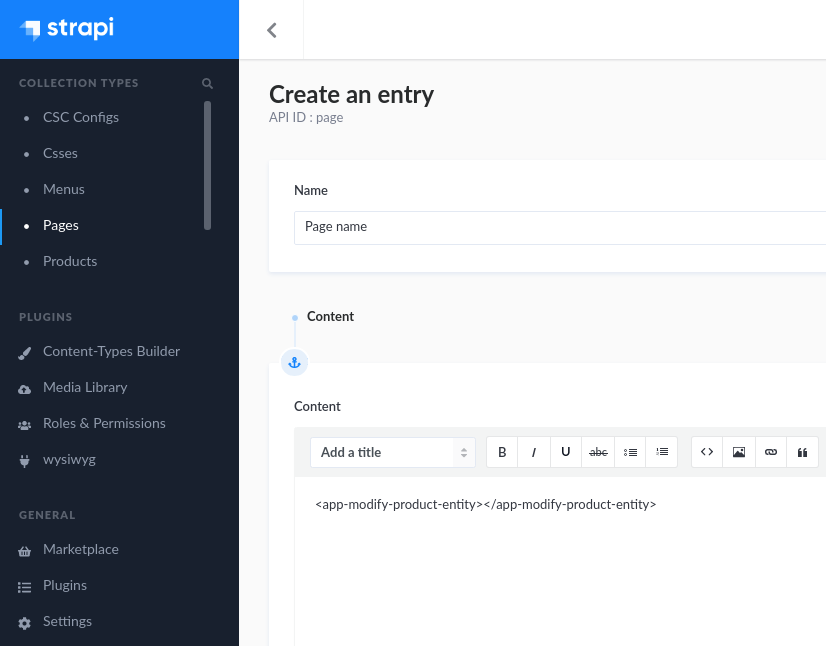
To configure the cart configuration page of the change-journey a Cart Configuration JSON Object has to be set up that defines which features are changeable by the user.
{
  "sections": [
    {
      "name": "Connectivity",
      "open": true,
      "page": "1",
      "features": [
        {
          "type": "select",
          "displayName": "Broadband",
          "description": "Select a bandwidth",
          "icon": "https://assets-base-url.com/icon.svg",
          "options": [
            {
              "name": "8Mbit",
              "target": {
                "type": "service-characteristic-parameter",
                "serviceCharacteristicParameter": {
                  "serviceKey": "SERVICE",
                  "serviceCharacteristicKey": "SERVICE:BANDWIDTH",
                  "serviceCharacteristicParameterKey": "8192_768"
                }
              }
            },
            {
              "name": "16Mbit",
              "target": {
                "type": "service-characteristic-parameter",
                "serviceCharacteristicParameter": {
                  "serviceKey": "SERVICE",
                  "serviceCharacteristicKey": "SERVICE:BANDWIDTH",
                  "serviceCharacteristicParameterKey": "16384_1024"
                }
              }
            }
          ]
        }
      ]
    }
  ]
}
After this, we have to configure the Product Actions of the Product entity that should be changeable. For this, we have to open the Product entity on the Strapi administration panel and add a Product Actions entry. The Displayname value defines the name of the action on the product item in the CSC pages. For the Page value we select the Page that we created earlier. The Cart Configuration JSON Object has to be linked via a parameter of the action with the Key value Modify_cart_config_url and the URL to the JSON object as the value.
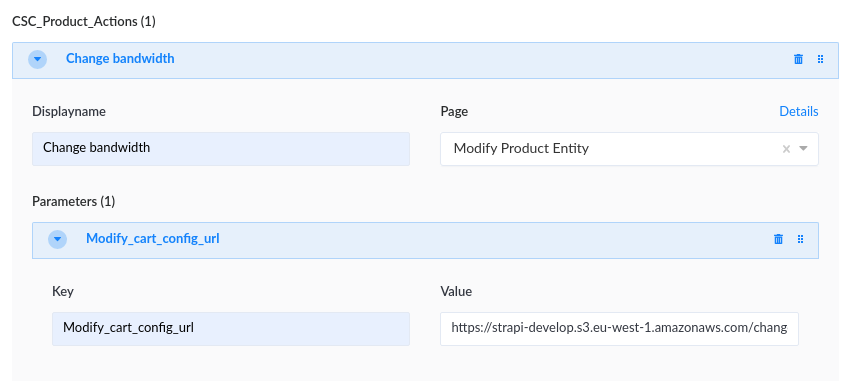
Create a Link to a Page
Creating a link from one page to another can be done with a href anchor in an HTML component of a Page. To create a link, we have to use the name of the Storefront as well as the slug of the page.
<a href="/STOREFRONTNAME/page/PAGESLUG">Link</a>|
Important
|
Using the link will reboot the Single Page Application (SPA)! In the future there will be pre-defined web components that will create an Angular router navigation, so this can be avoided. |
A page navigation can also be triggered in the code of a web component by dispatching a custom event on the document:
document.dispatchEvent(new CustomEvent('triggerRouterPageNavigation', {'detail': 'page-slug'}));Create and Integrate a Custom Element (Web Component)
Custom elements, also called web components, are reusable HTML tags containing JavaScript code, HTML template and CSS styling bundled in a single JavaScript file. In Infonova Shopfront, web components can be integrated by adding the JavaScript file to the Global_scripts field of a Storefront entity and using the HTML tag of the web component in generic HTML contents of Page entities.
A pre-configured web component skeleton based on Angular and Angular Elements can be downloaded here.
To use storefront capabilities, like the data of the user that is logged in or the Infonova API clients, several services can be used in the code of web components. The following list shows all the services that are usable on a global level:
| Service | Location | Description |
|---|---|---|
infonovaCartConfigService |
document['$infonovaCartConfigService'] |
contains several dependencies including the Infonova APIs and helper methods to manipulate an Infonova Shopping Cart as well as the data of the currently logged in user. |
storefrontService |
document['$storefrontService'] |
used to load data of the currently active Storefront. |
pageService |
document['$pageService'] |
used to load the data of Page entities. |
menuService |
document['$menuService'] |
used to load the data of Menu entities. |
For details of how to use the services and finding a list of available methods see the README of the web component skeleton.
In order to trigger an Infonova Shopfront router page navigation, the following custom event can be dispatched on the document:
document.dispatchEvent(new CustomEvent('triggerRouterPageNavigation', {'detail': 'page-slug'}));Create a Custom Cart Configuration Feature Type
Feature Types are used to define how the user is changing a feature in the Infonova shopping cart. There is a list of pre-defined types that can be used out-of-the-box, but sometimes a custom type is needed